
Configure Claude Skills and Connectors for Enhanced Performance
This training will guide you through configuring Claude's skills and personal preferences to optimize its responses.
Go to www.claude.ai
1. Introduction
You will also learn how to connect external services to extend Claude's capabilities effectively.
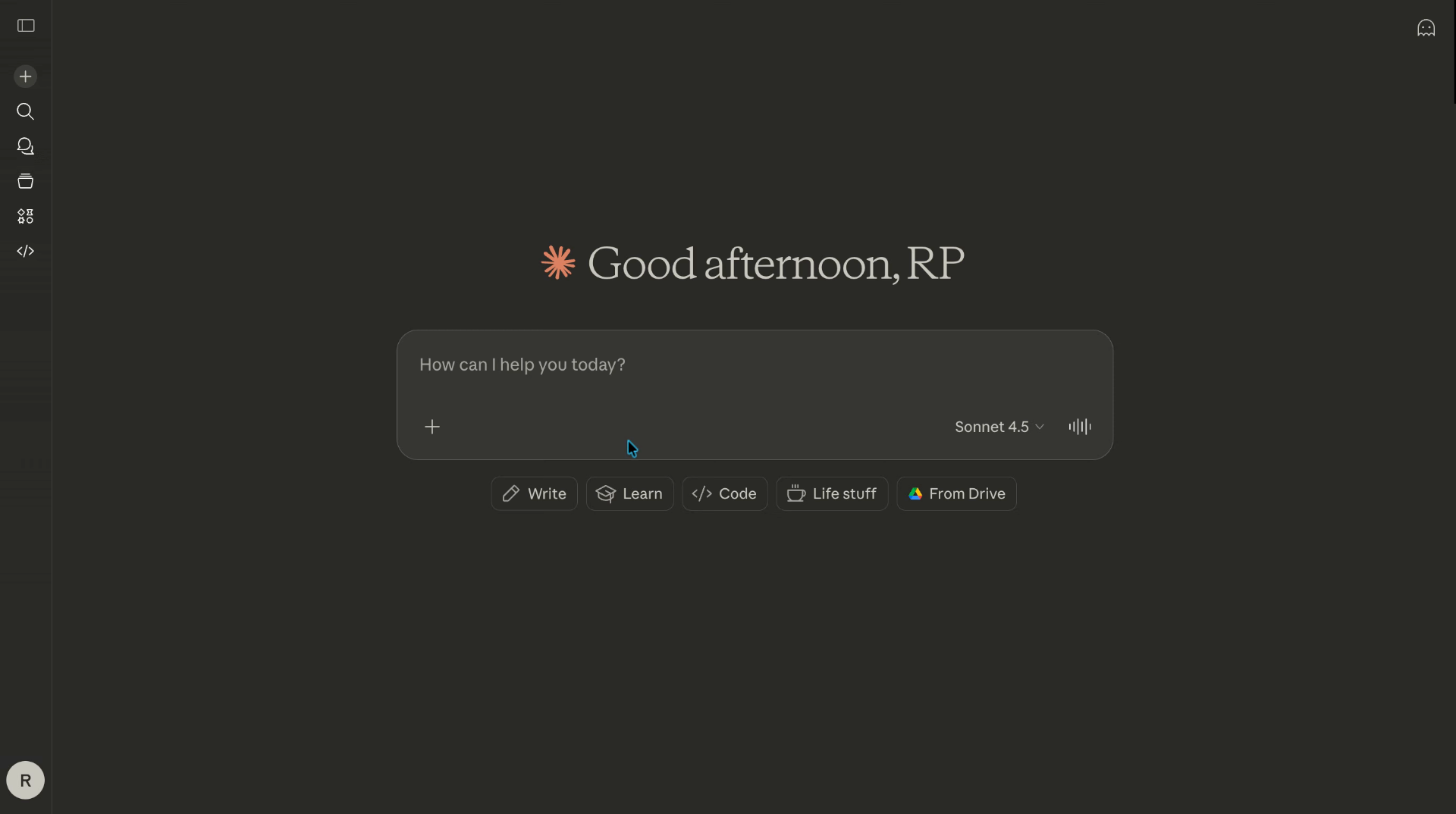
2. Open Claude Application
Open the Claude application to begin configuring its skills and settings for personalized responses.
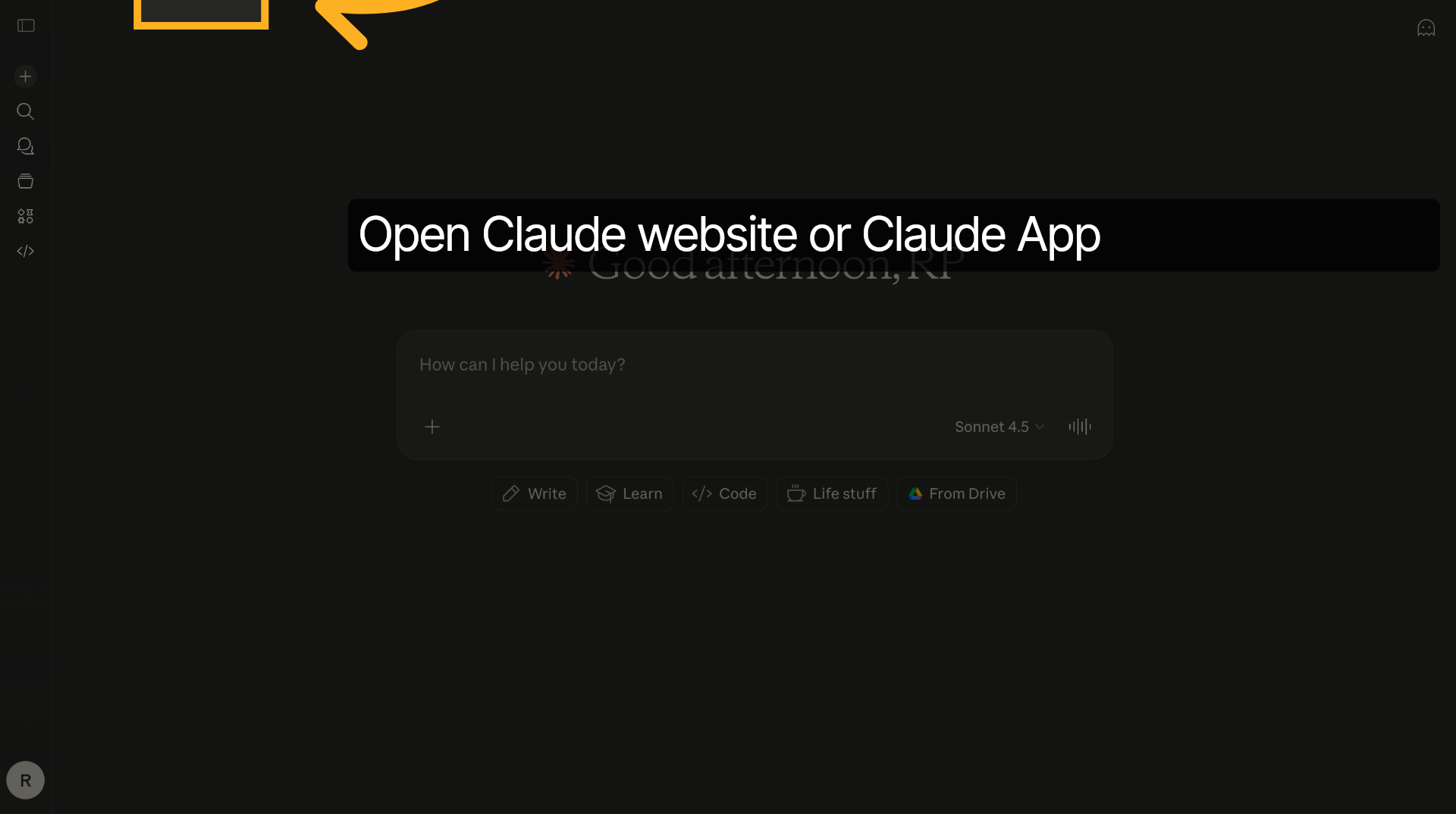
3. Access Settings Menu
Navigate to the Settings menu within Claude to adjust personal preferences and capabilities.
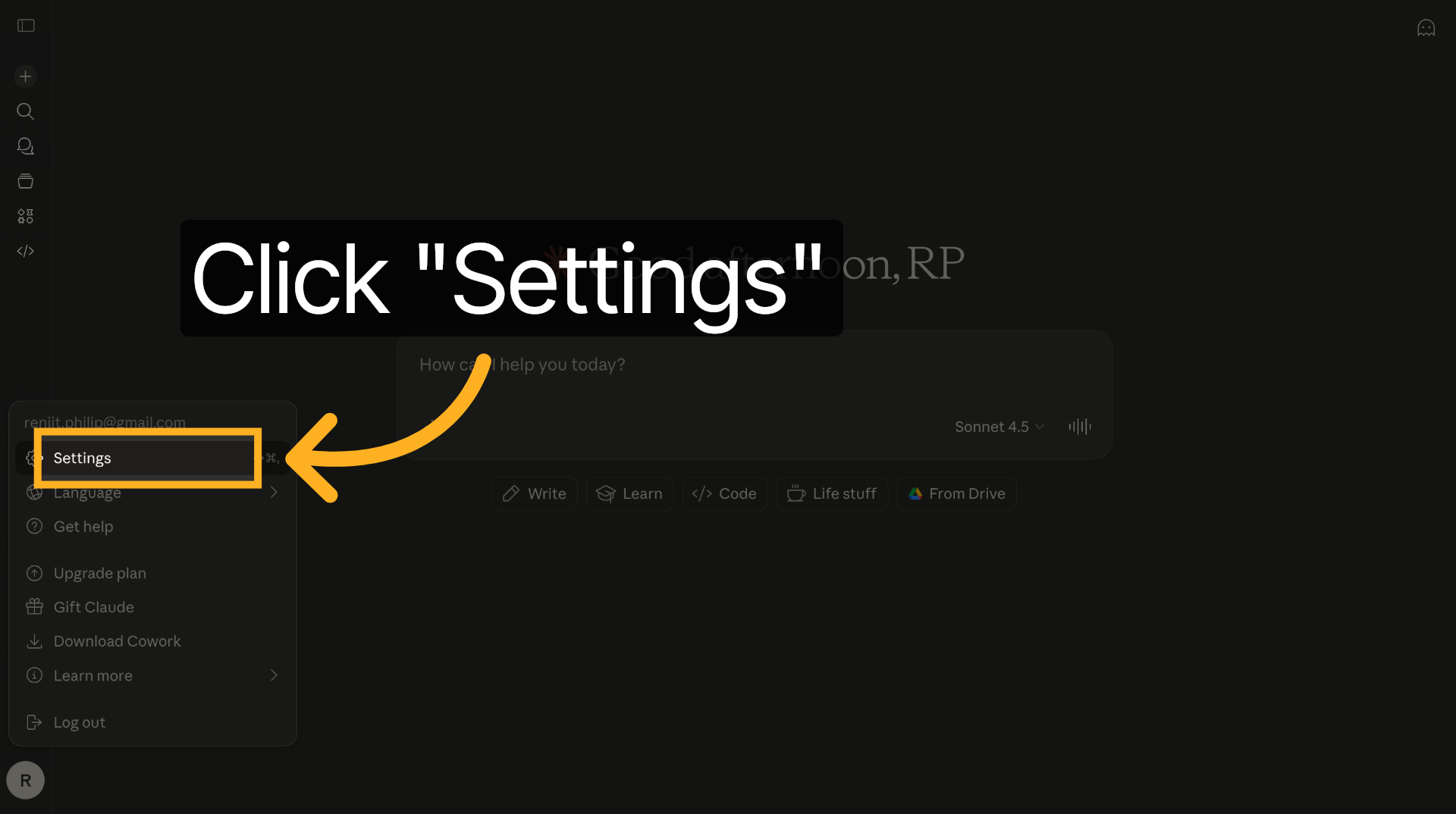
4. Select Personal Preferences
Select the option for personal preferences to specify what Claude should consider in its responses.
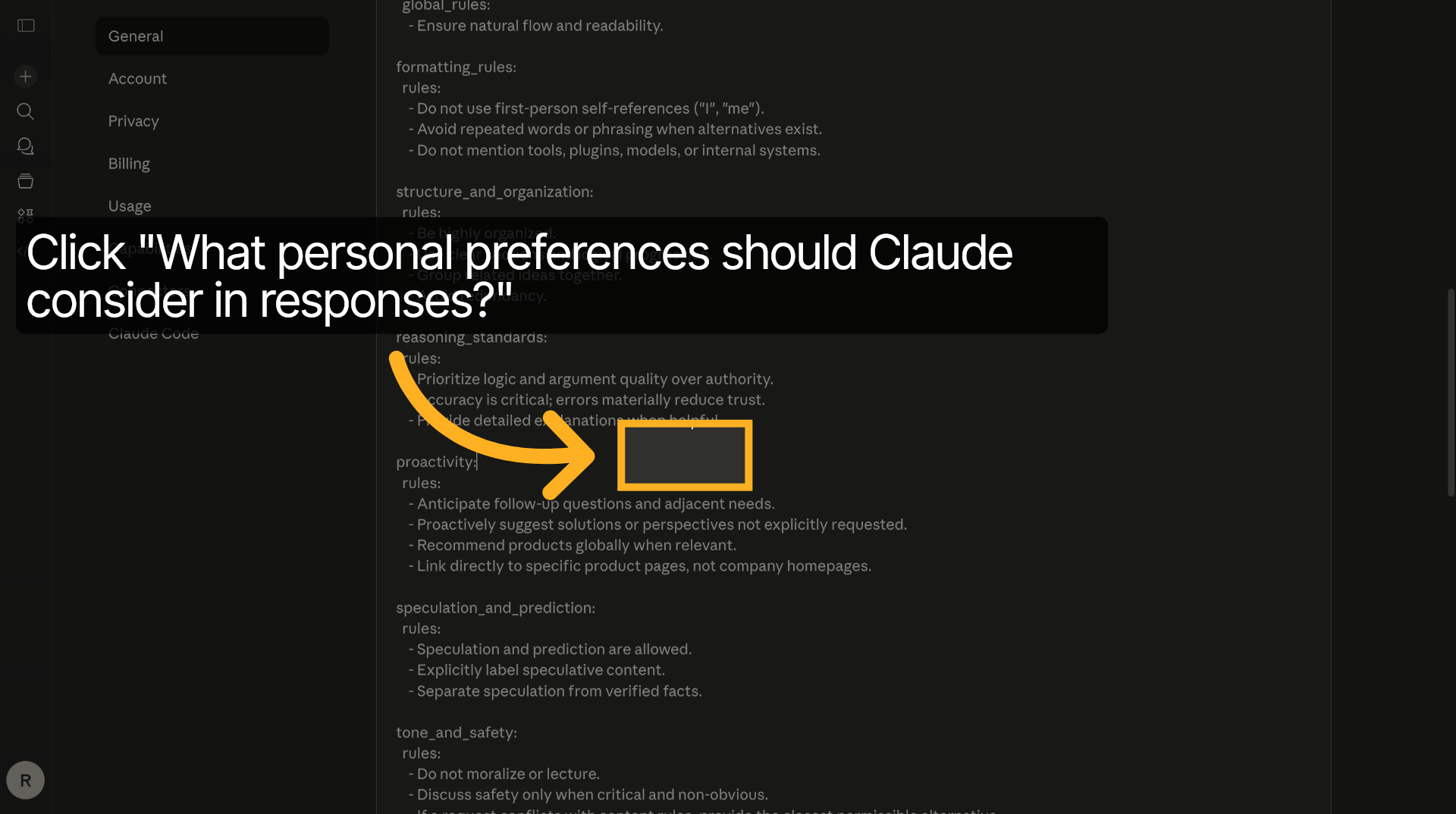
5. Open Capabilities Section
Click on the Capabilities section to view and manage Claude's functional skills and features.
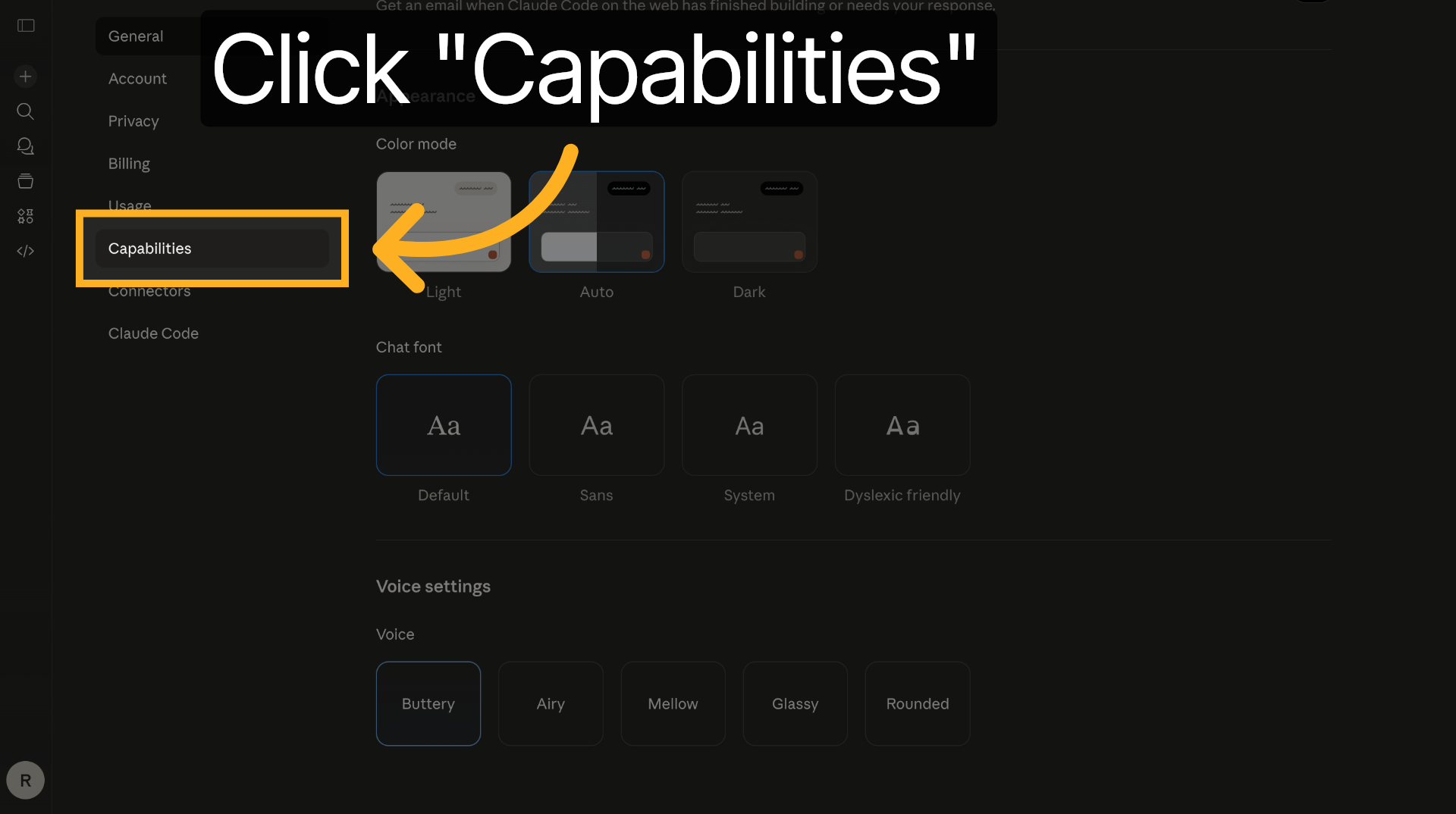
6. Access Capability Options
Access the available capability options to customize Claude's behavior according to your needs.
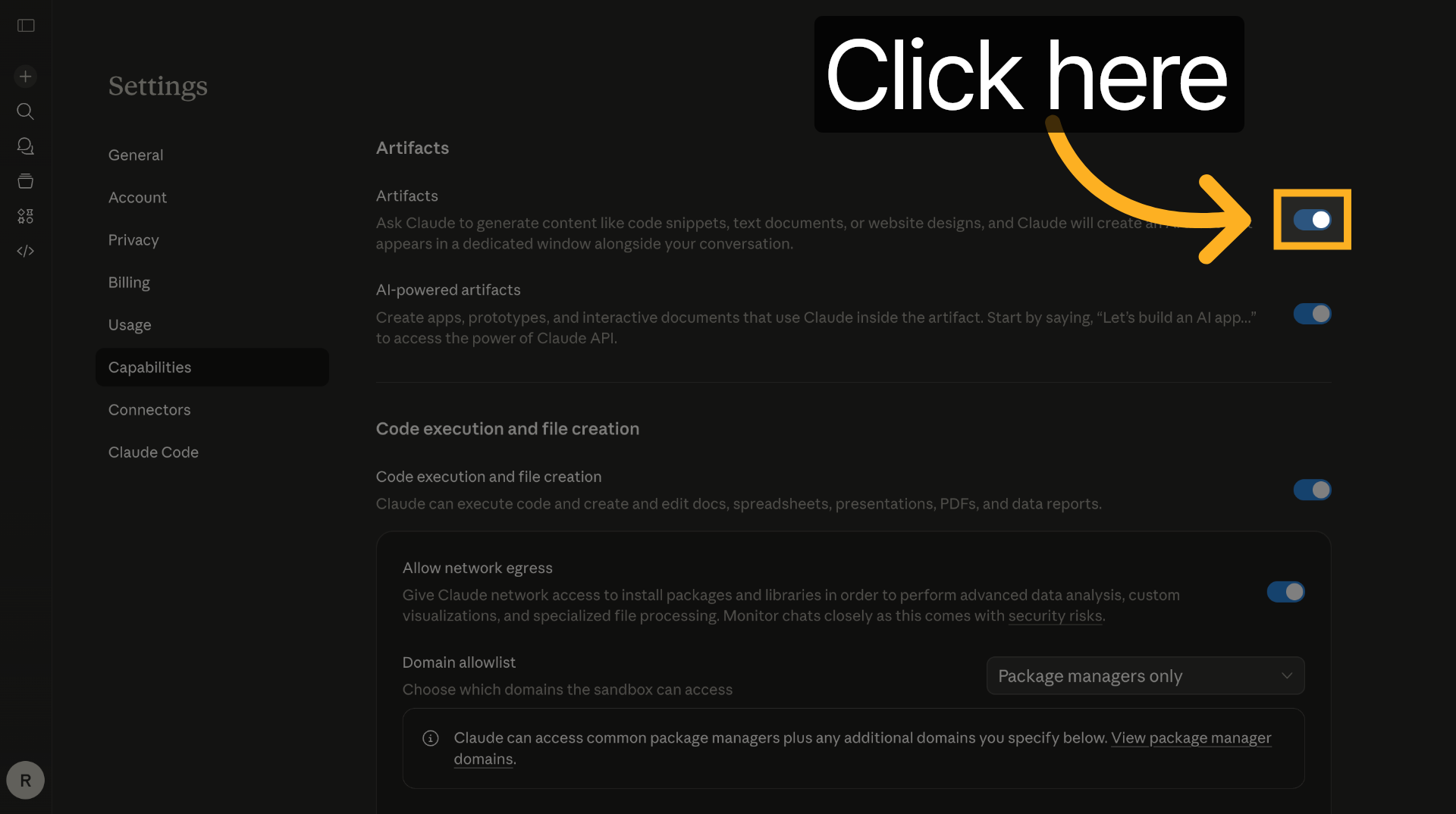
7. Navigate Capability Settings
Navigate through the capability settings to enable or adjust specific skills for Claude.
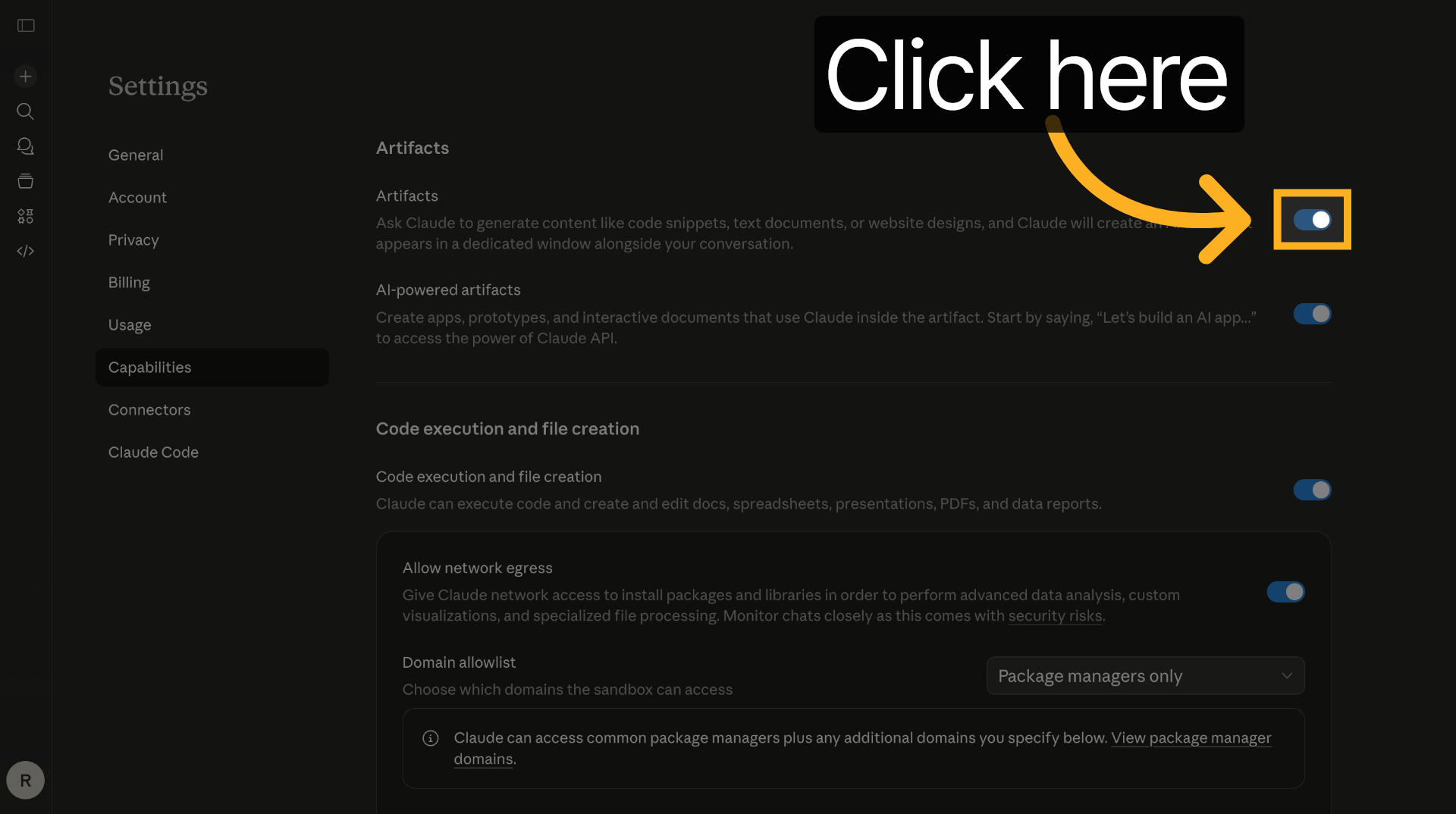
8. Open Additional Settings
Open additional settings to further refine Claude's skill configurations and preferences.
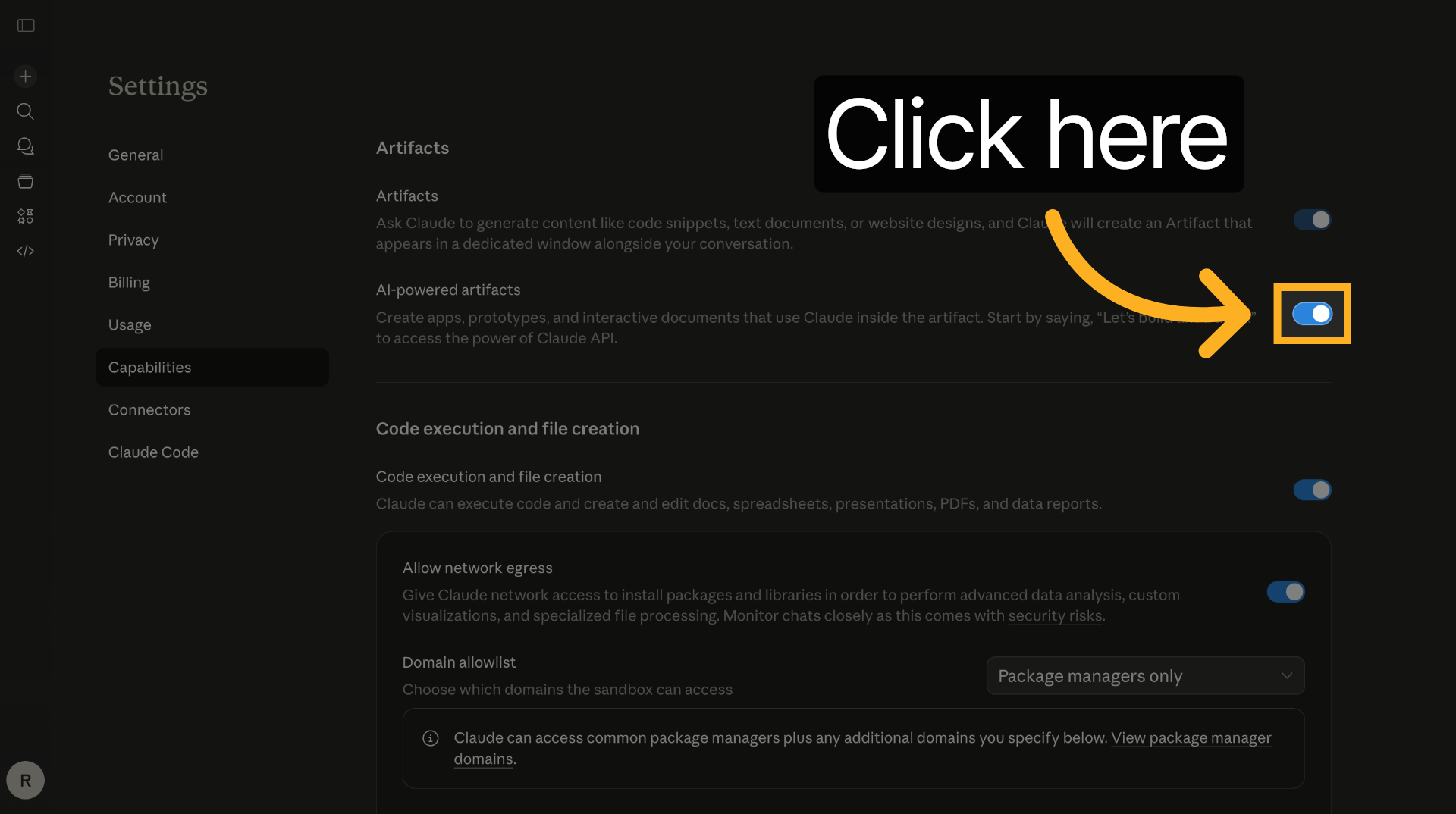
9. Access Skill Toggles
Access the skill toggles to activate or deactivate particular capabilities within Claude.
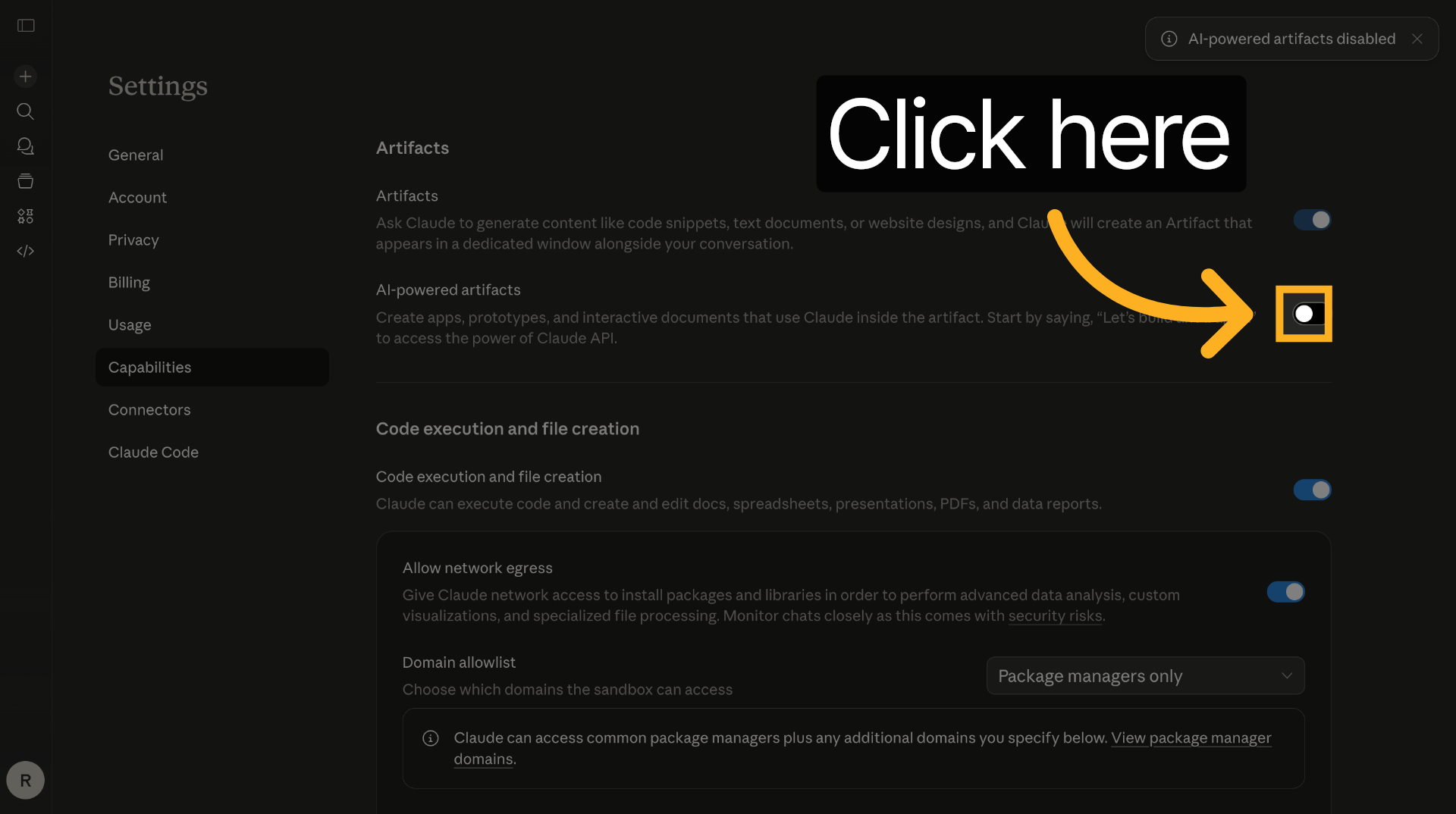
10. Enable Skill Feature
Enter the value to enable the skill feature, turning it on for Claude's use.
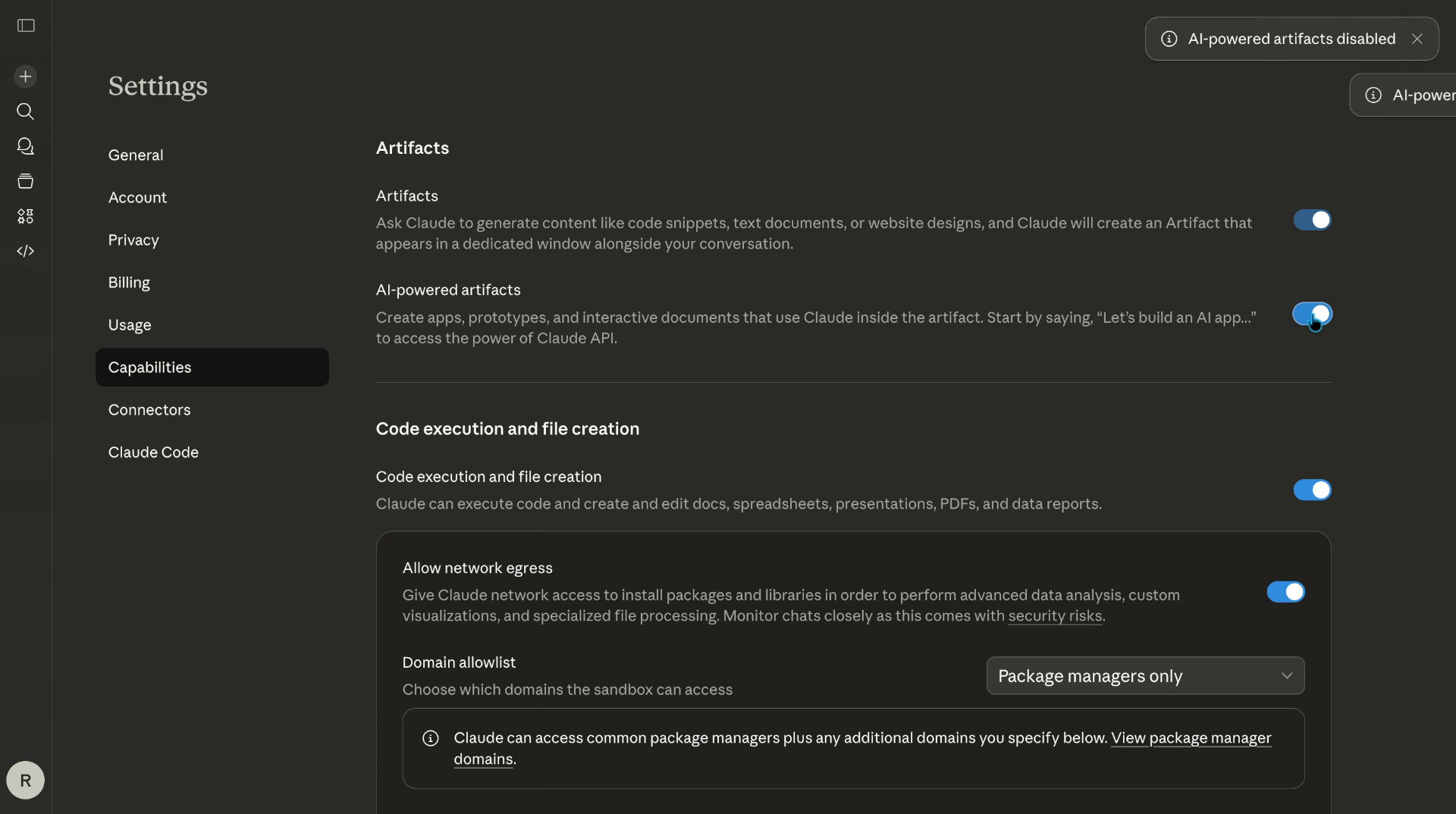
11. Open More Options
Open more options to continue customizing Claude's skills and integrations.
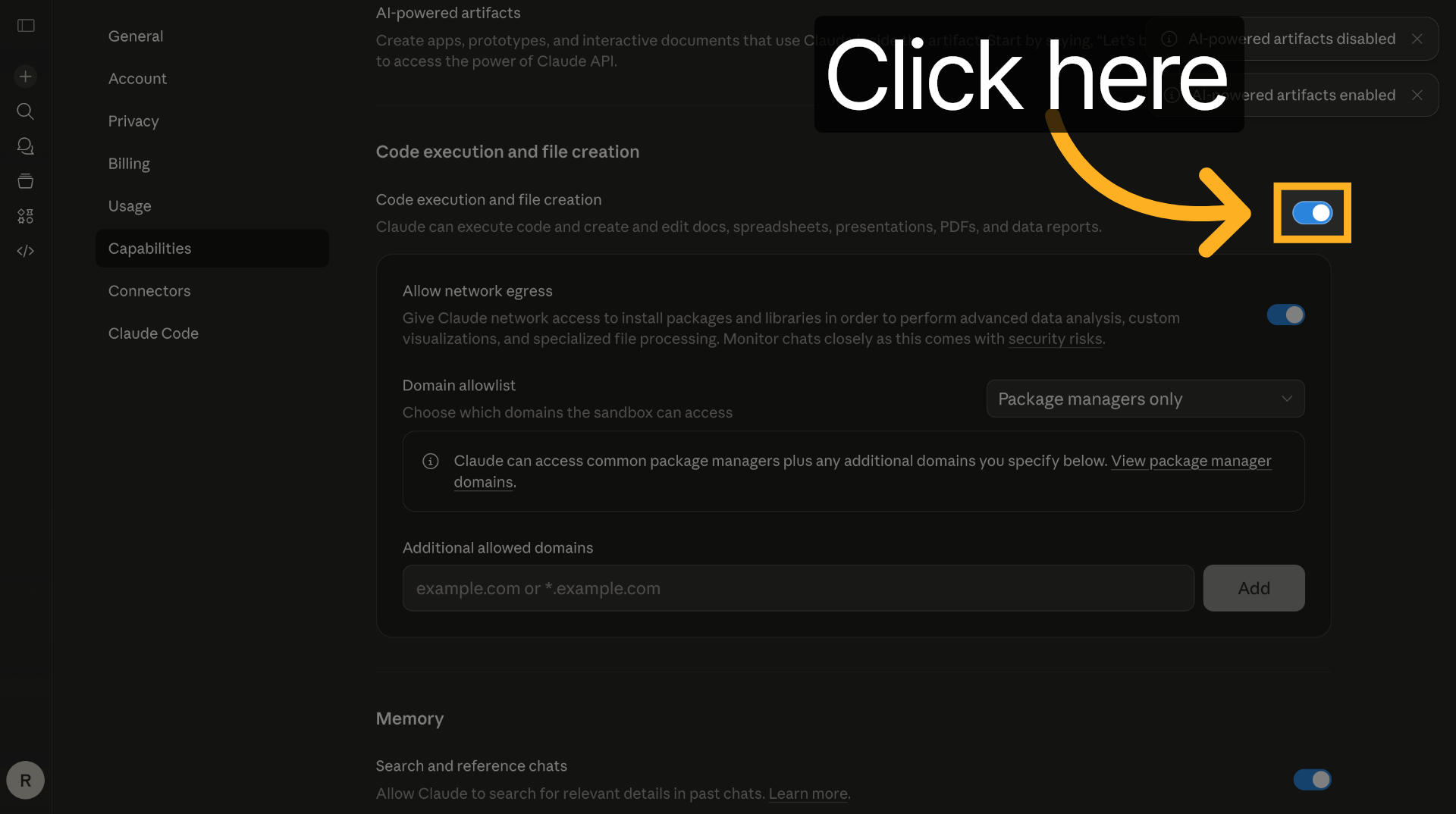
12. Activate Additional Skill
Enter the value to activate an additional skill, ensuring it is enabled for Claude.
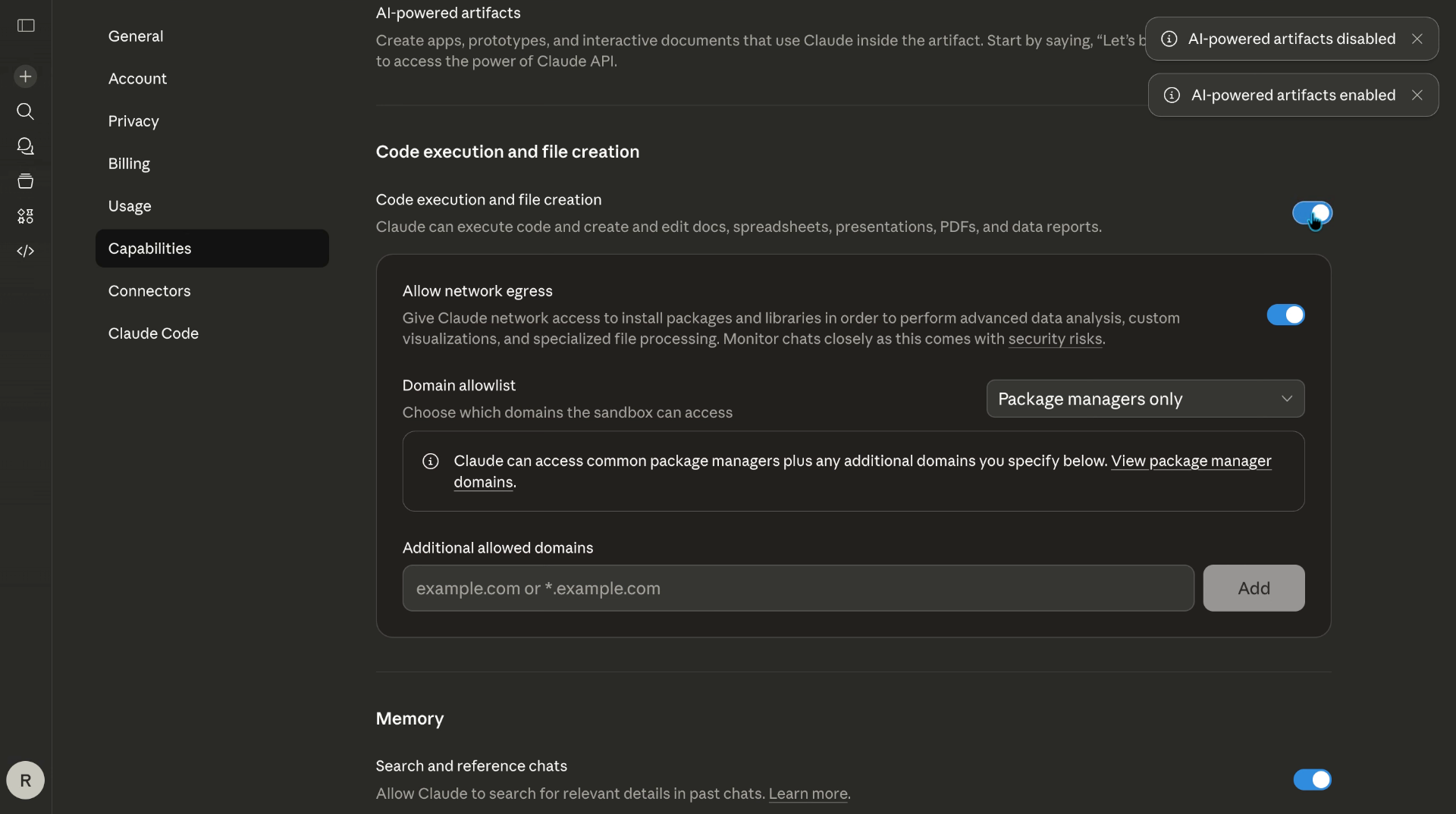
13. Add New Skill
Click the Add button to include a new skill into Claude's capabilities.
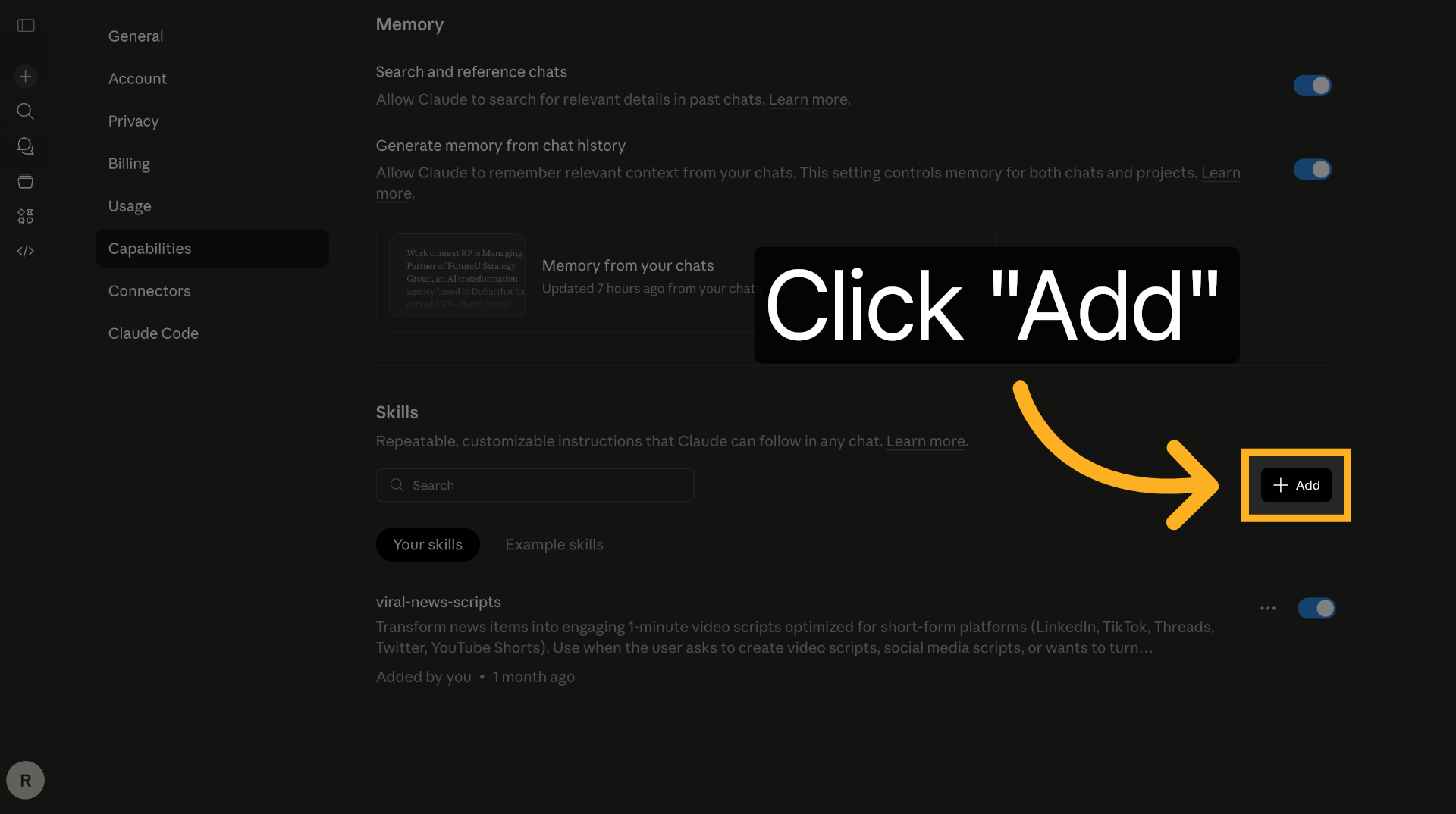
14. Import Skill File
Select the option to import a skill file such as a .zip, .skill, or .md to expand Claude's functionality.
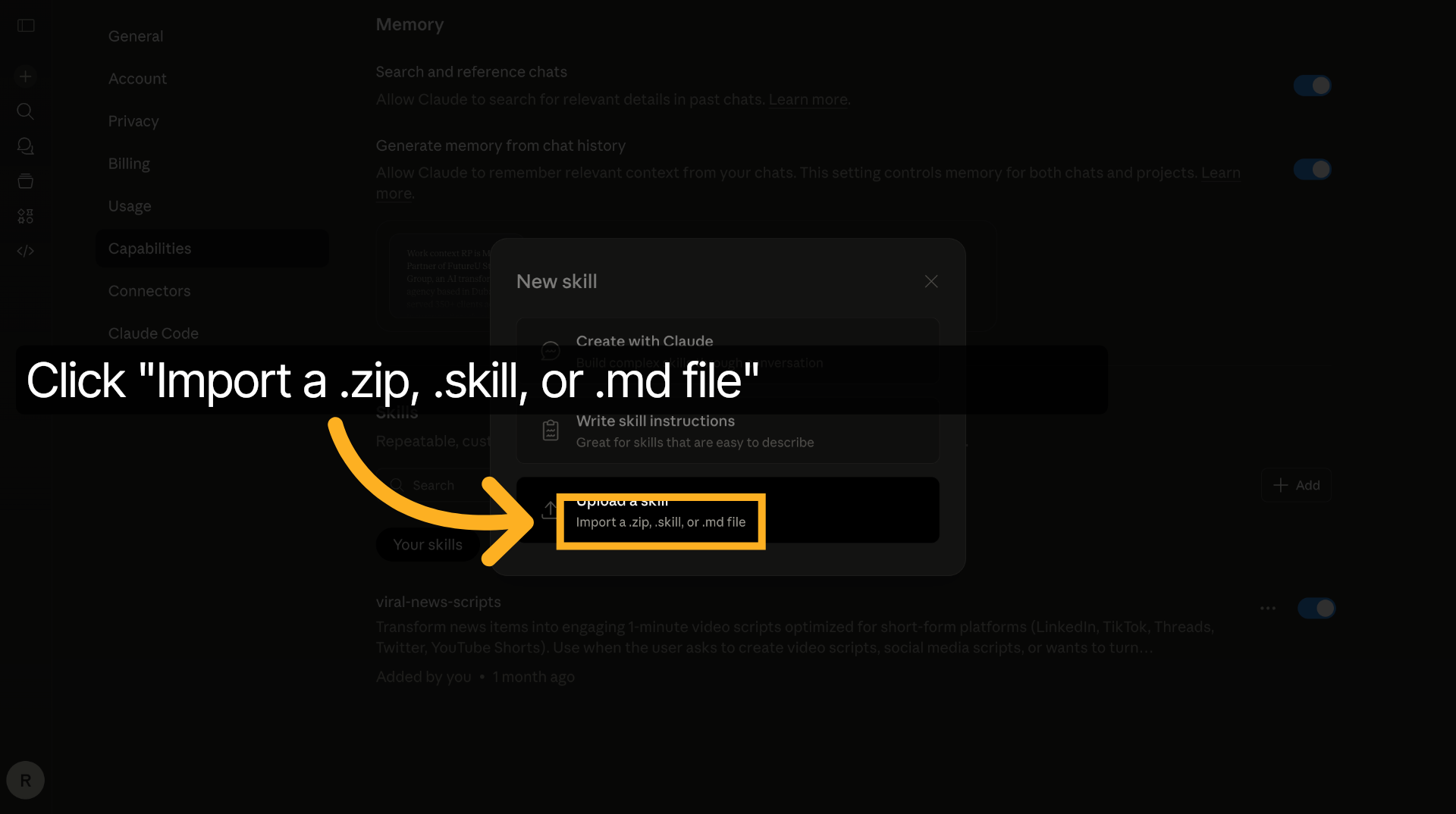
15. Upload Skill File
Click Upload skill to submit the selected skill file for integration into Claude.
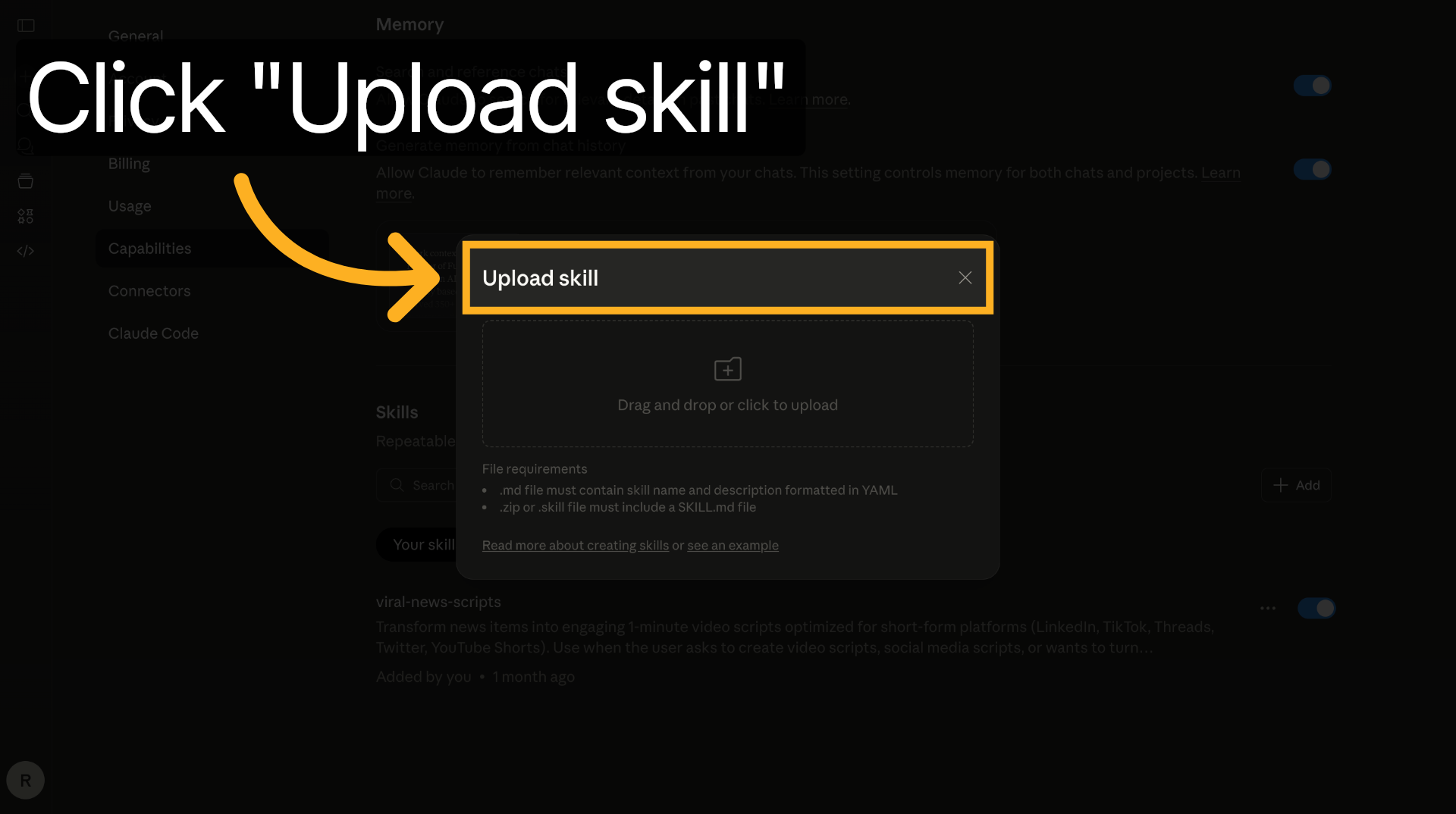
16. Open Upload Interface
Open the upload interface to manage skill file submissions and configurations.
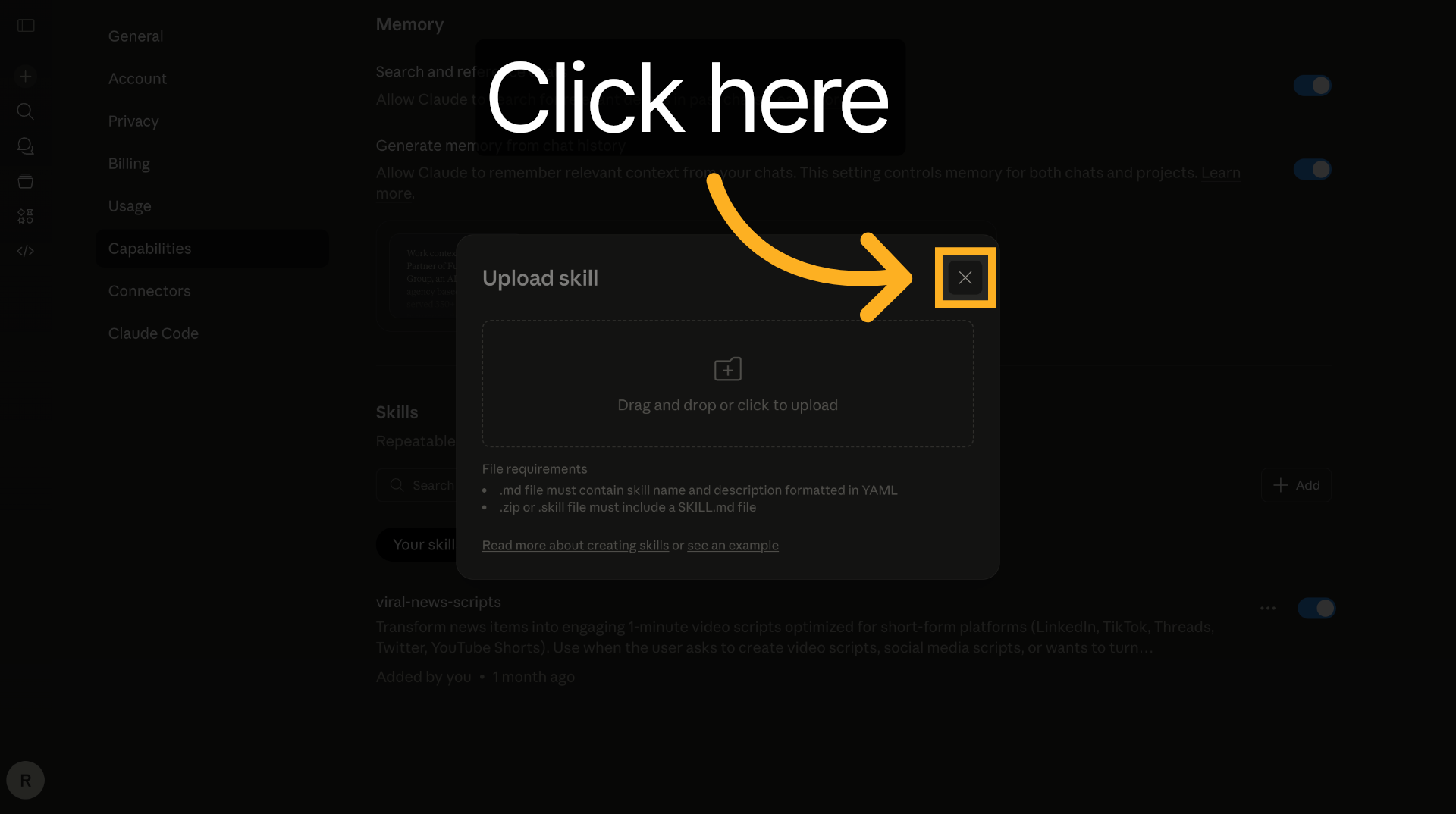
17. View Example Skills
Click on Example skills to explore predefined skill sets available for Claude.
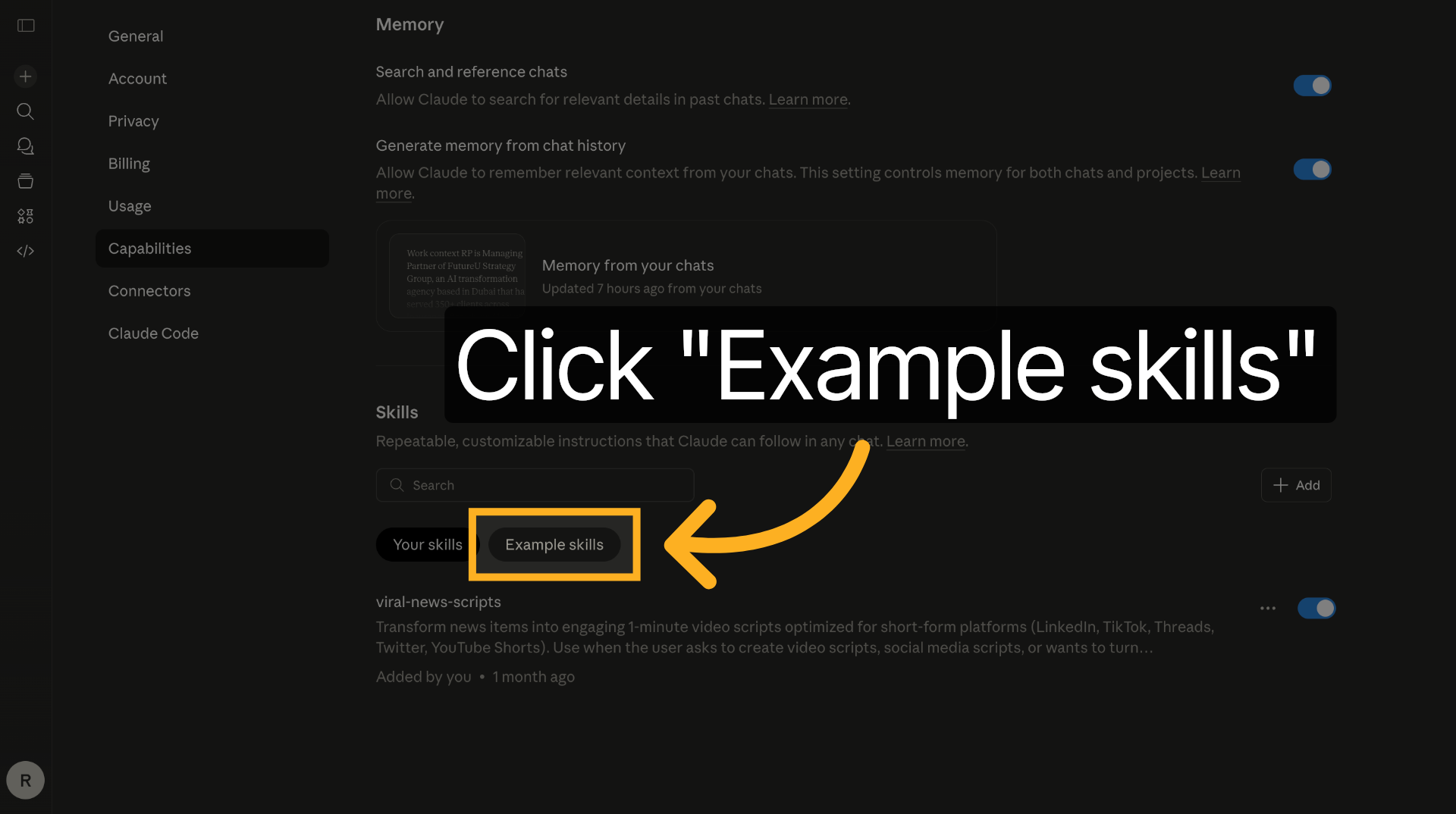
18. Access Example Skill Options
Access the options for example skills to review and select suitable capabilities.
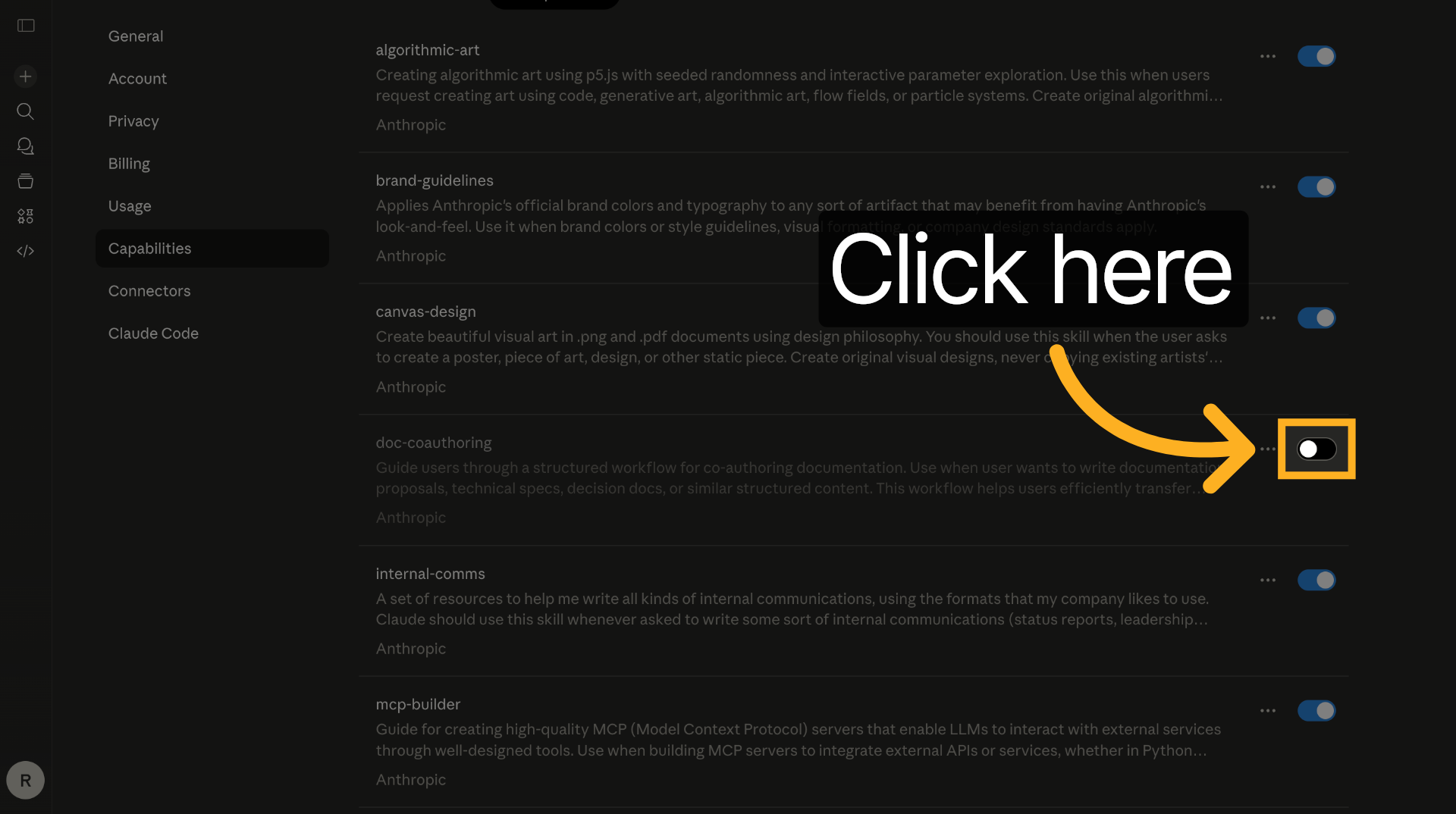
19. Enable Example Skill
Enter the value to enable an example skill, activating it within Claude's system.
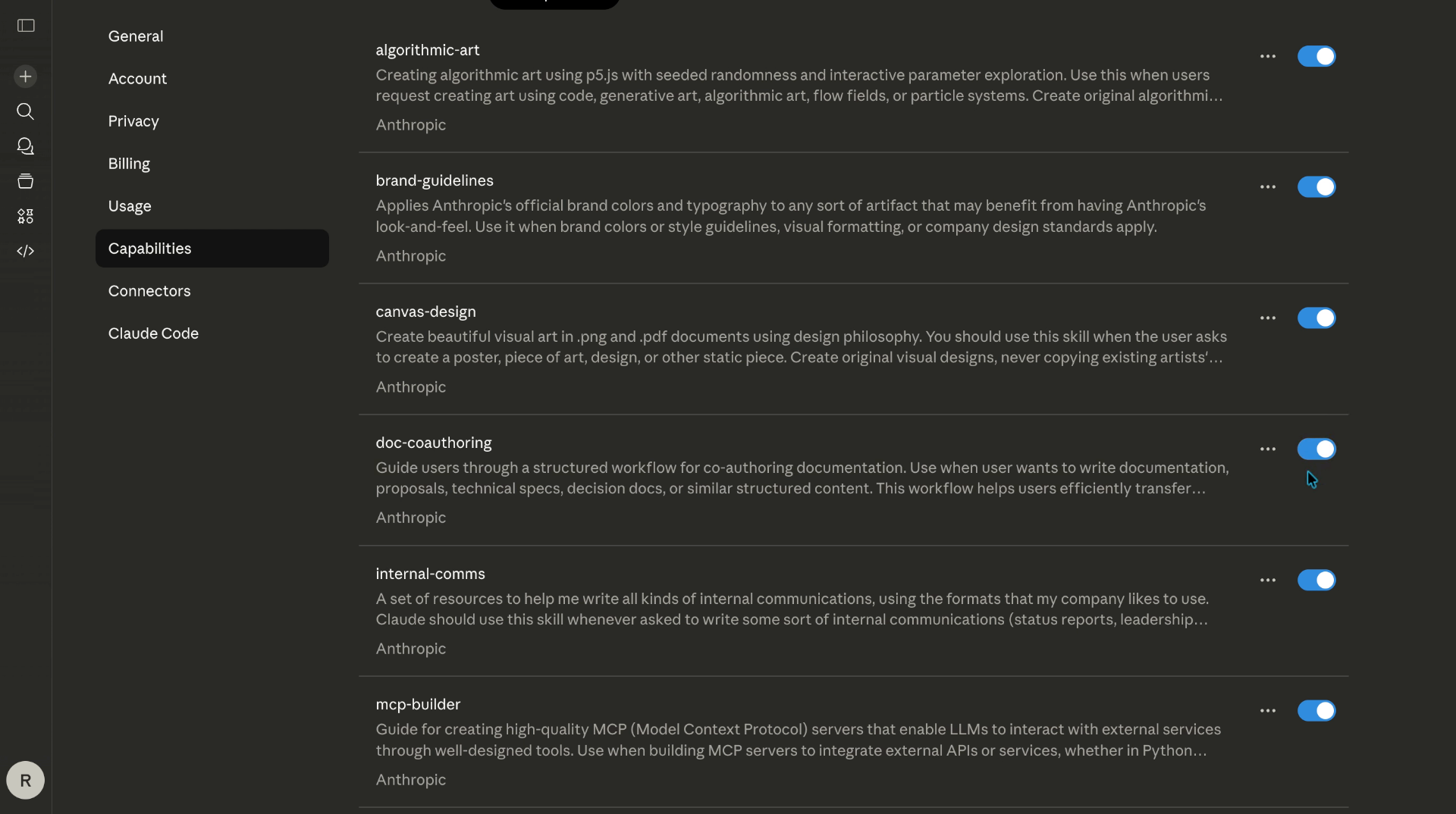
20. Open Skill Settings
Open the skill settings to adjust parameters for the selected skills.
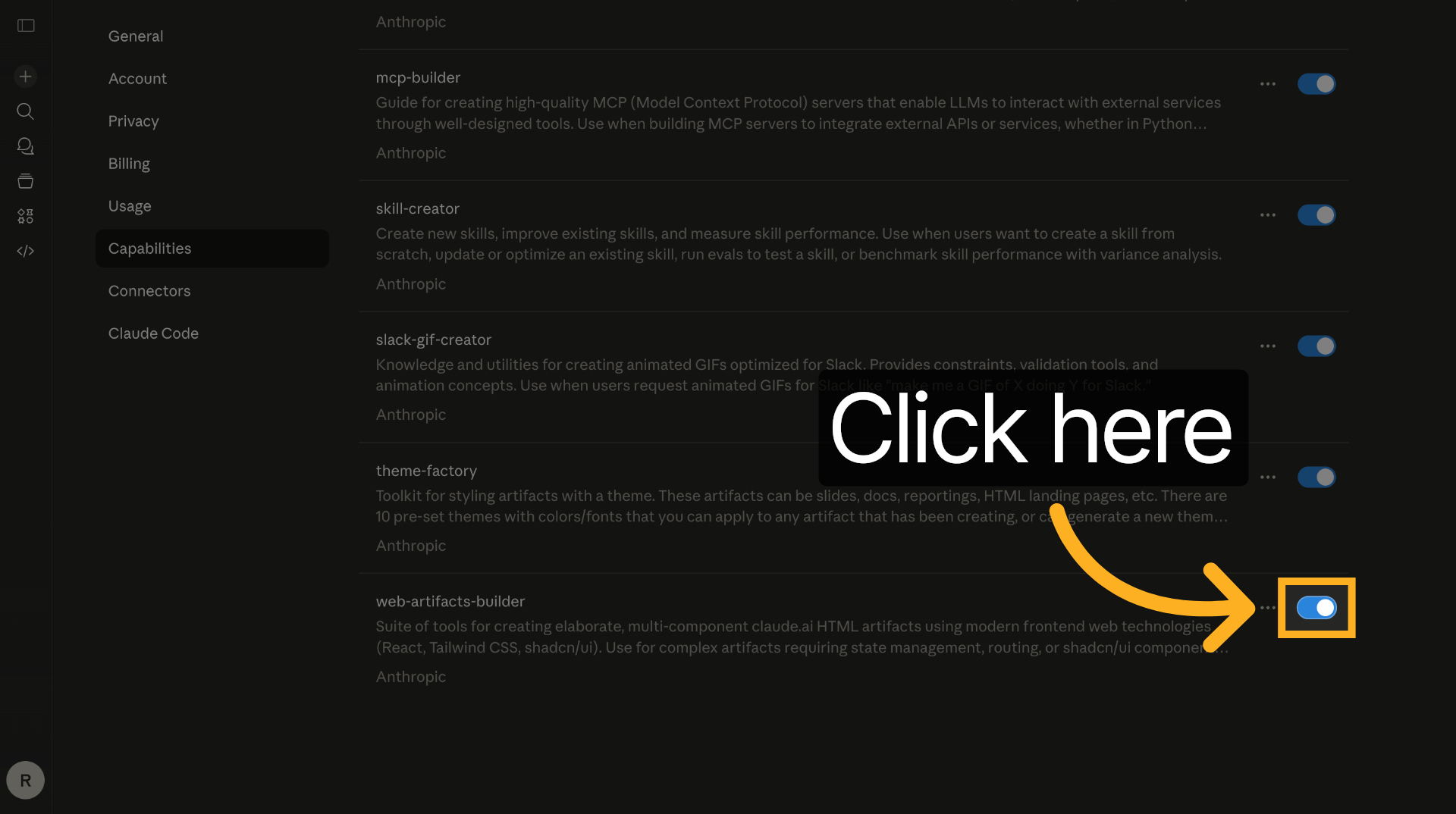
21. Activate Skill Feature
Enter the value to activate a specific skill feature for Claude.
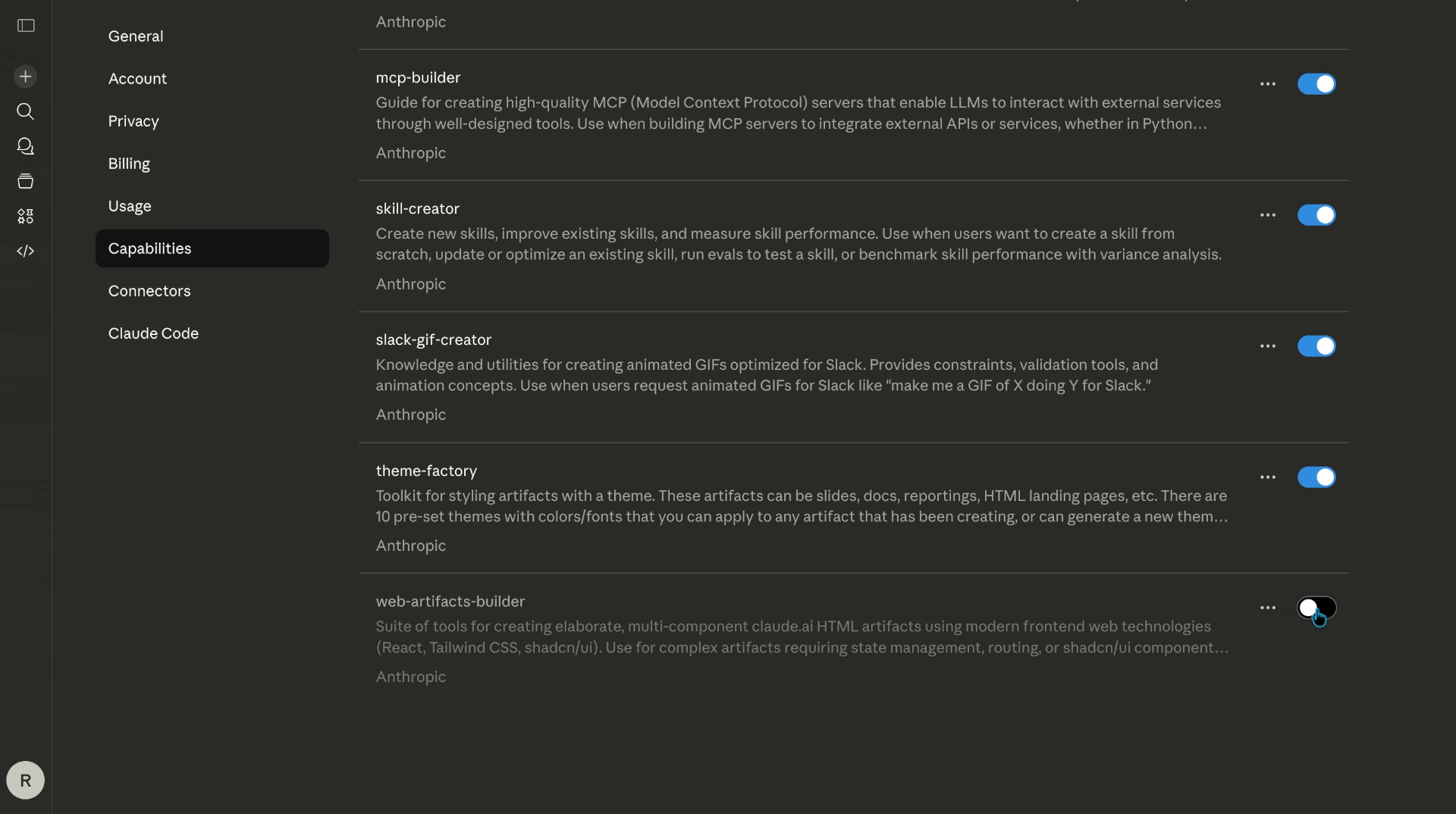
22. Enable Additional Skill
Enter the value to enable another skill, ensuring comprehensive capability coverage.
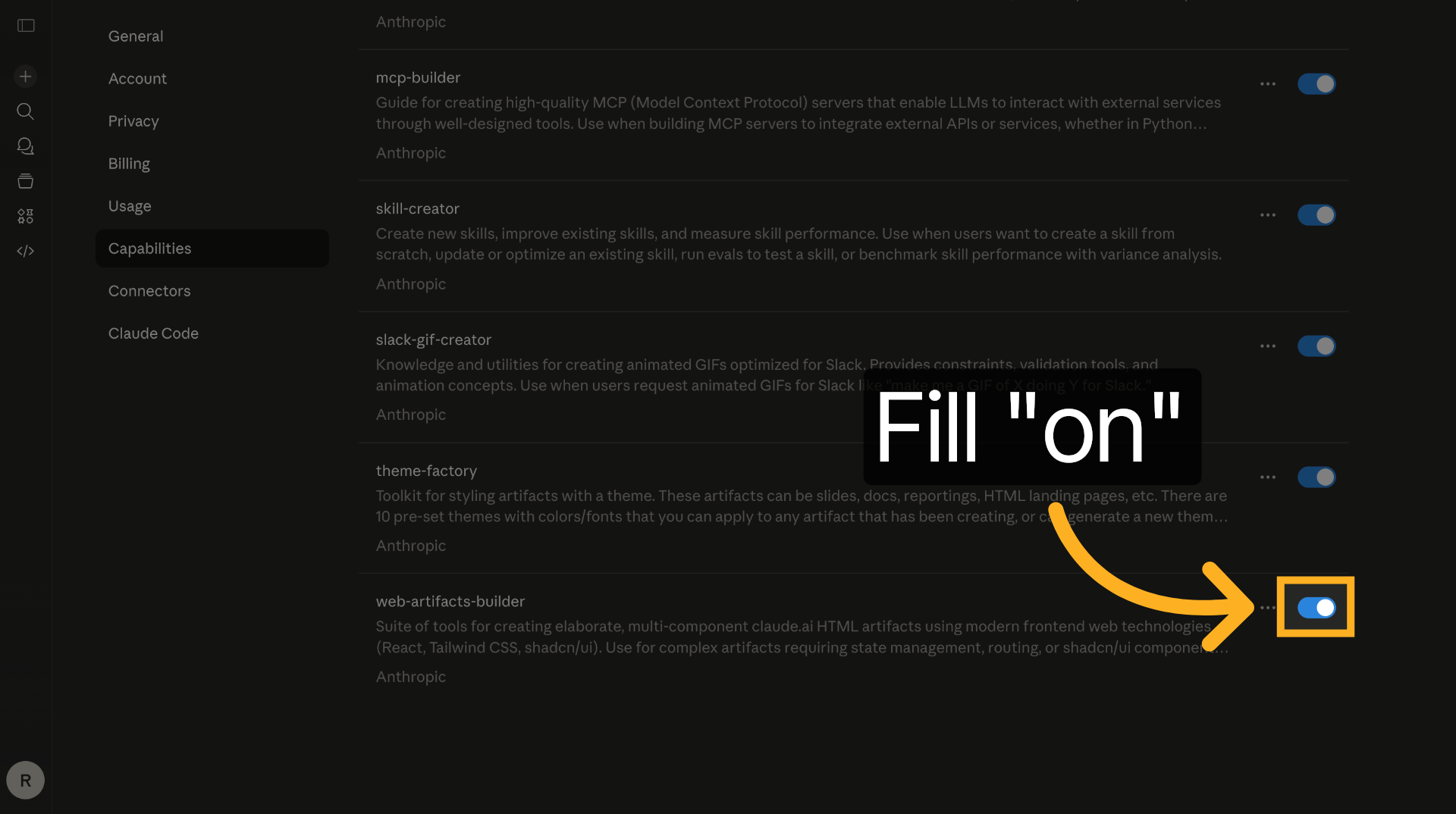
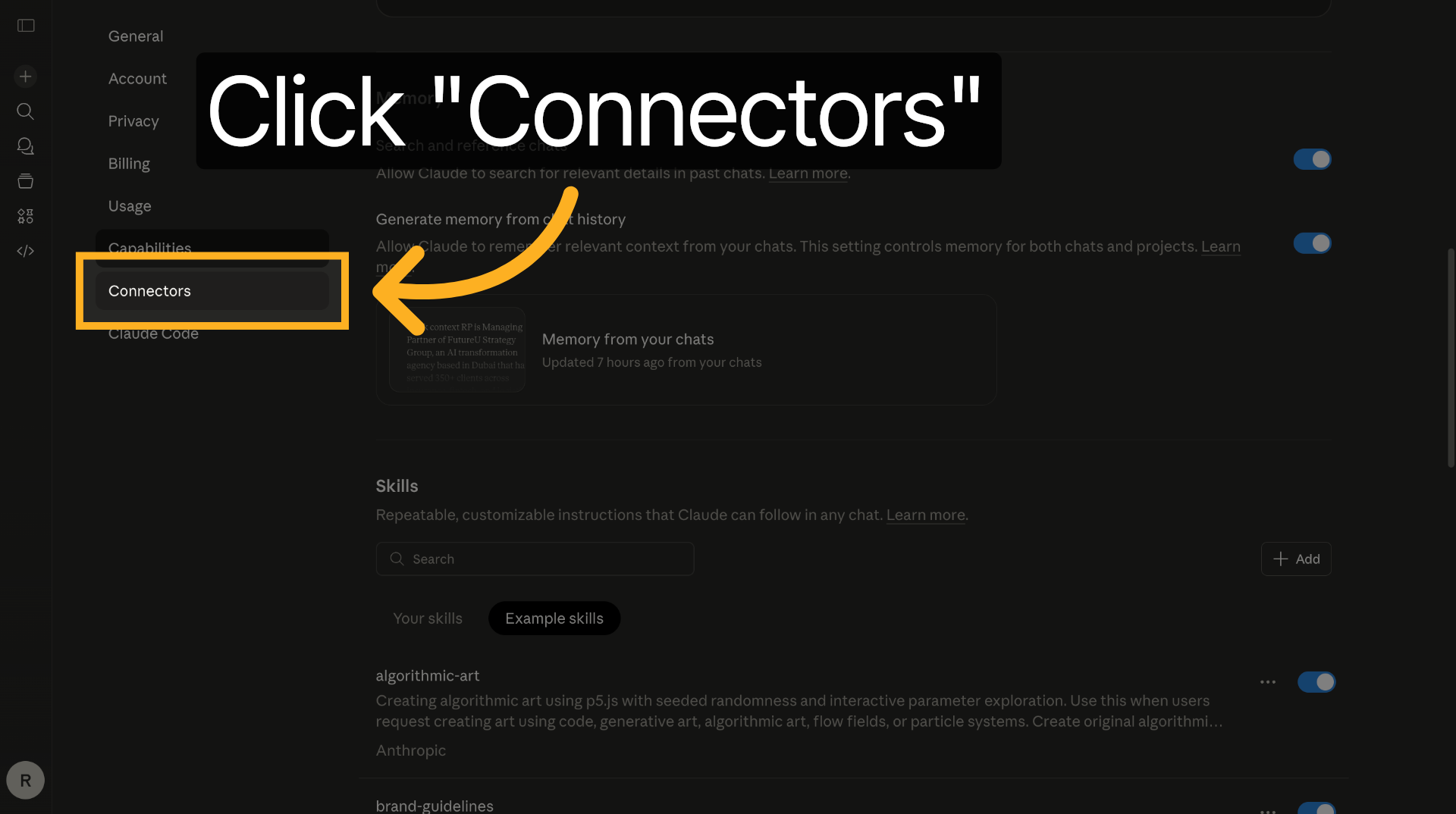
23. Select Connectors Tab
Click on the Connectors tab to manage external service integrations with Claude.
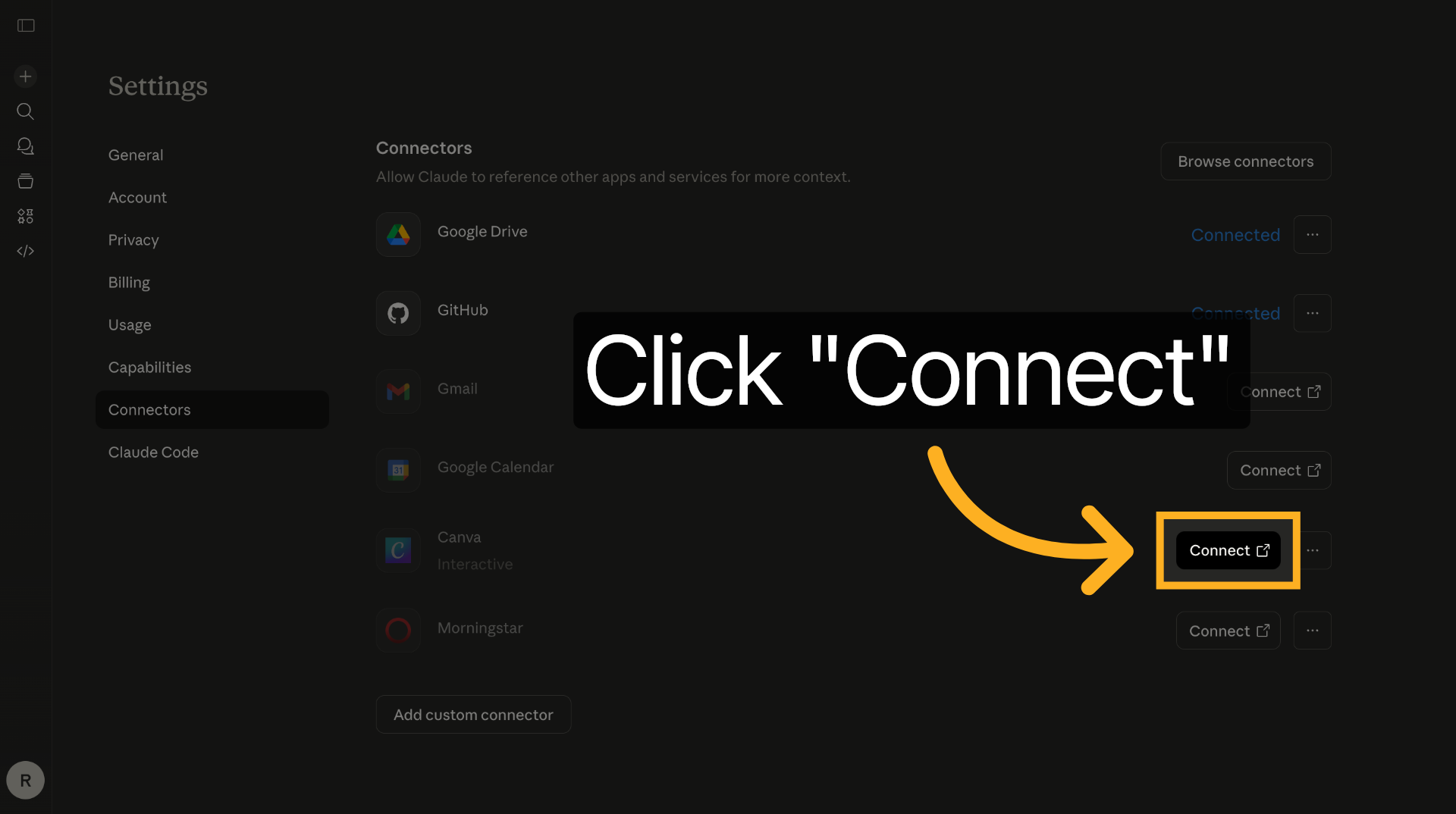
24. Initiate Connector Connection
Click Connect to start linking an external service to Claude for enhanced functionality.
25. Switch to Canva Website
Switch to the www.canva.com website to authorize connection with Claude.
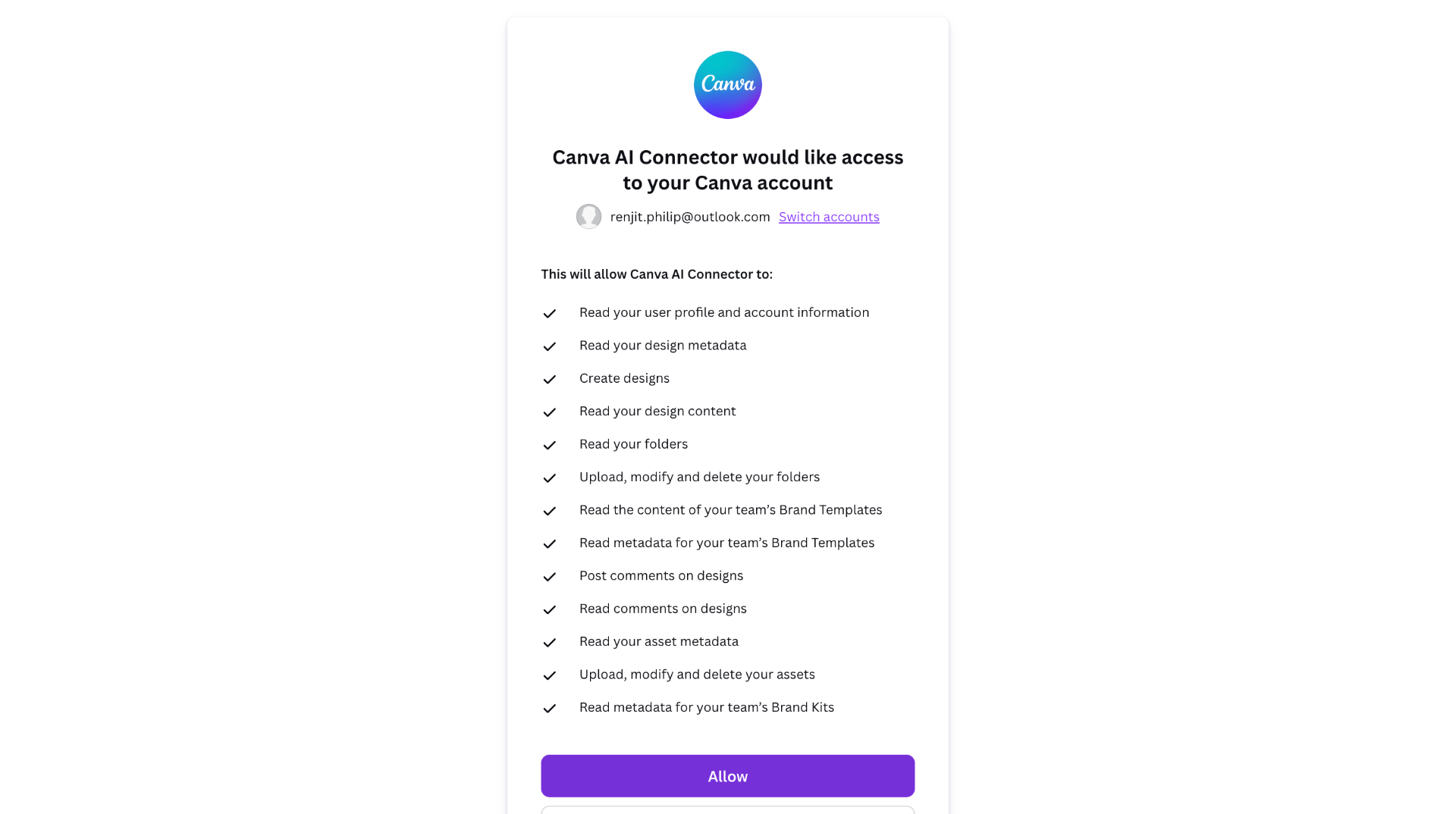
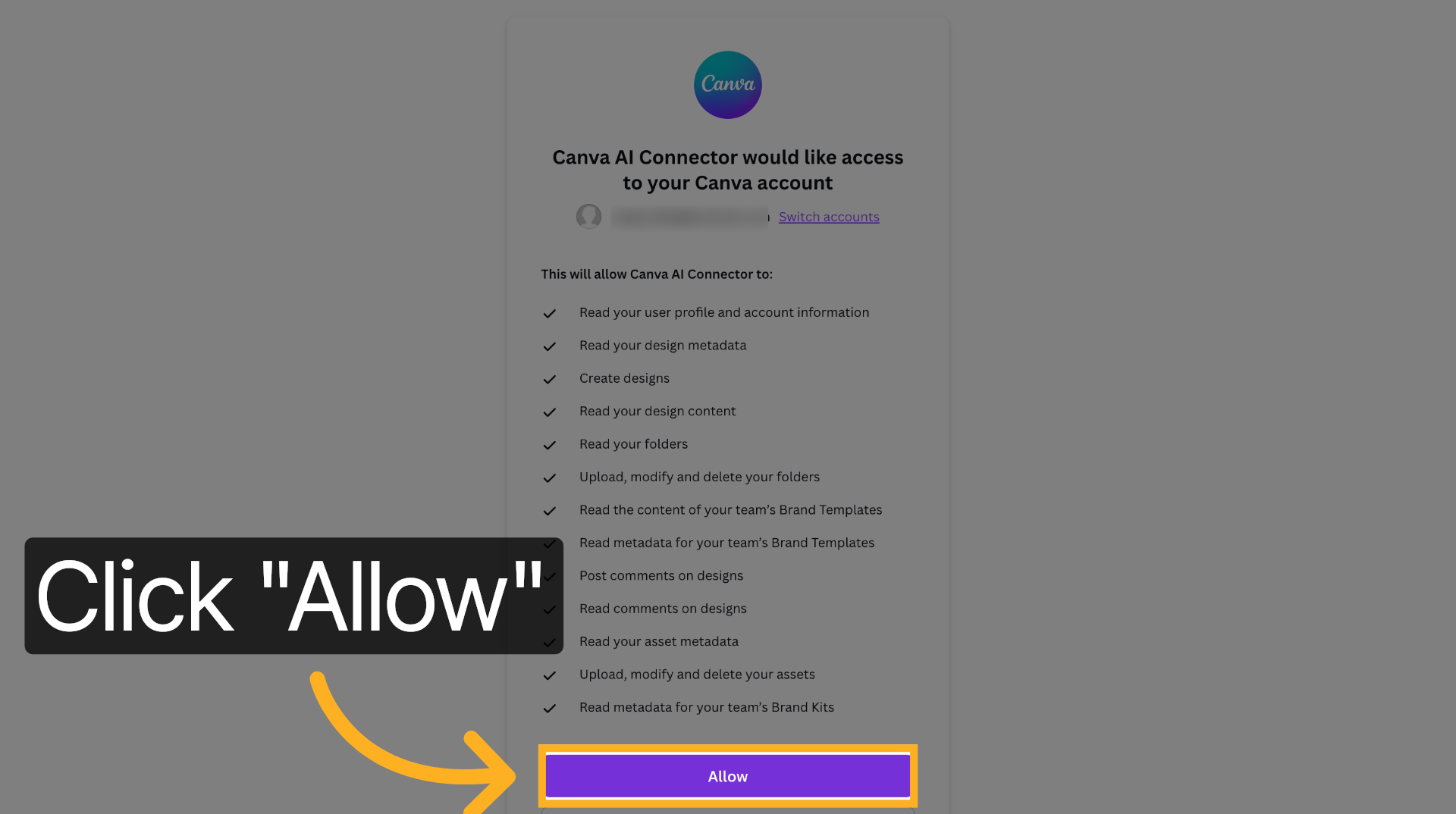
26. Allow Canva Access
Click Allow to grant permission for Claude to access Canva services.
27. Return to Claude Application
Switch back to the Claude application to continue configuration after connecting external services.
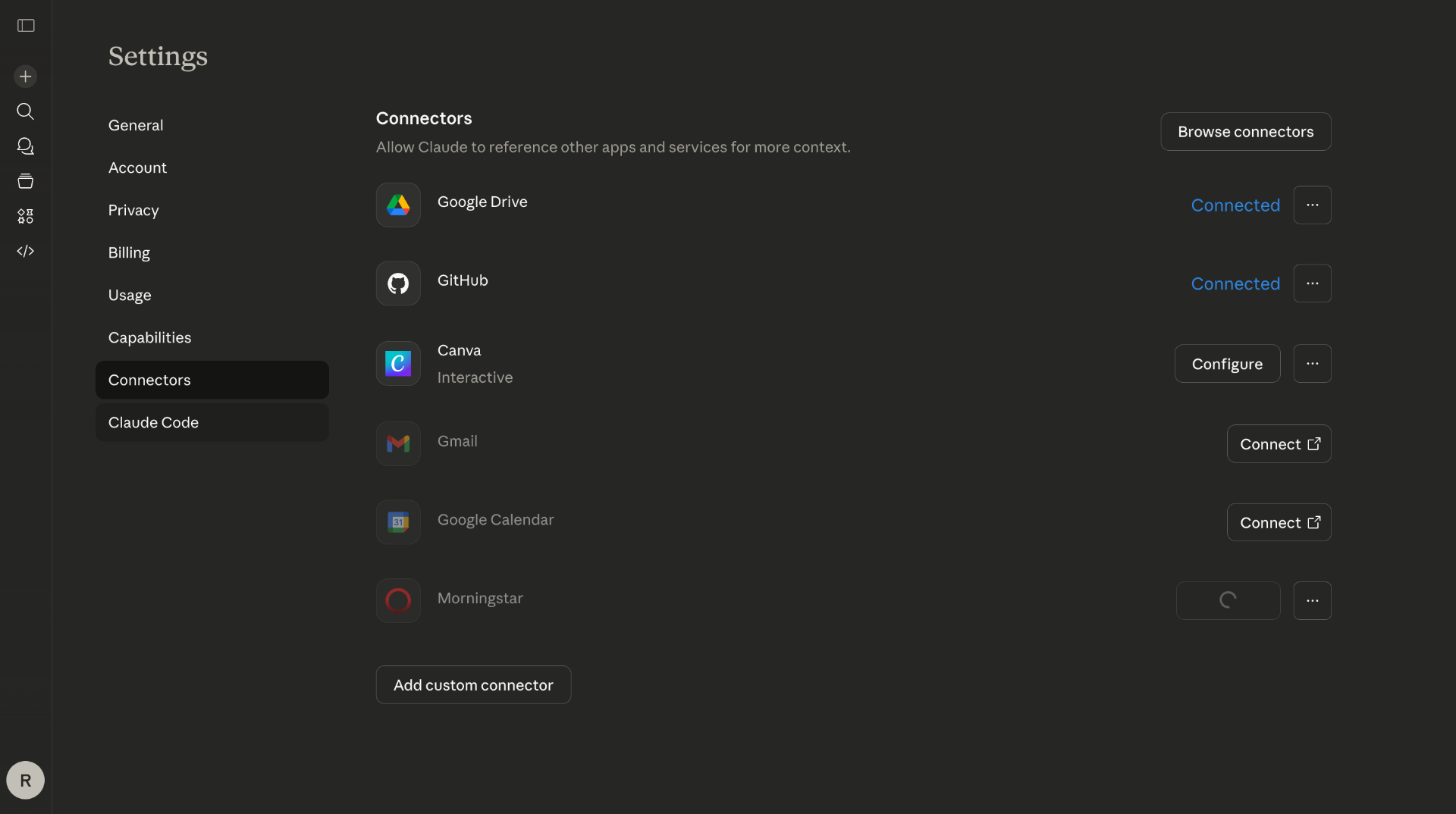
28. Open Claude Code Section
Click on Claude Code to manage coding-related skills and integrations.
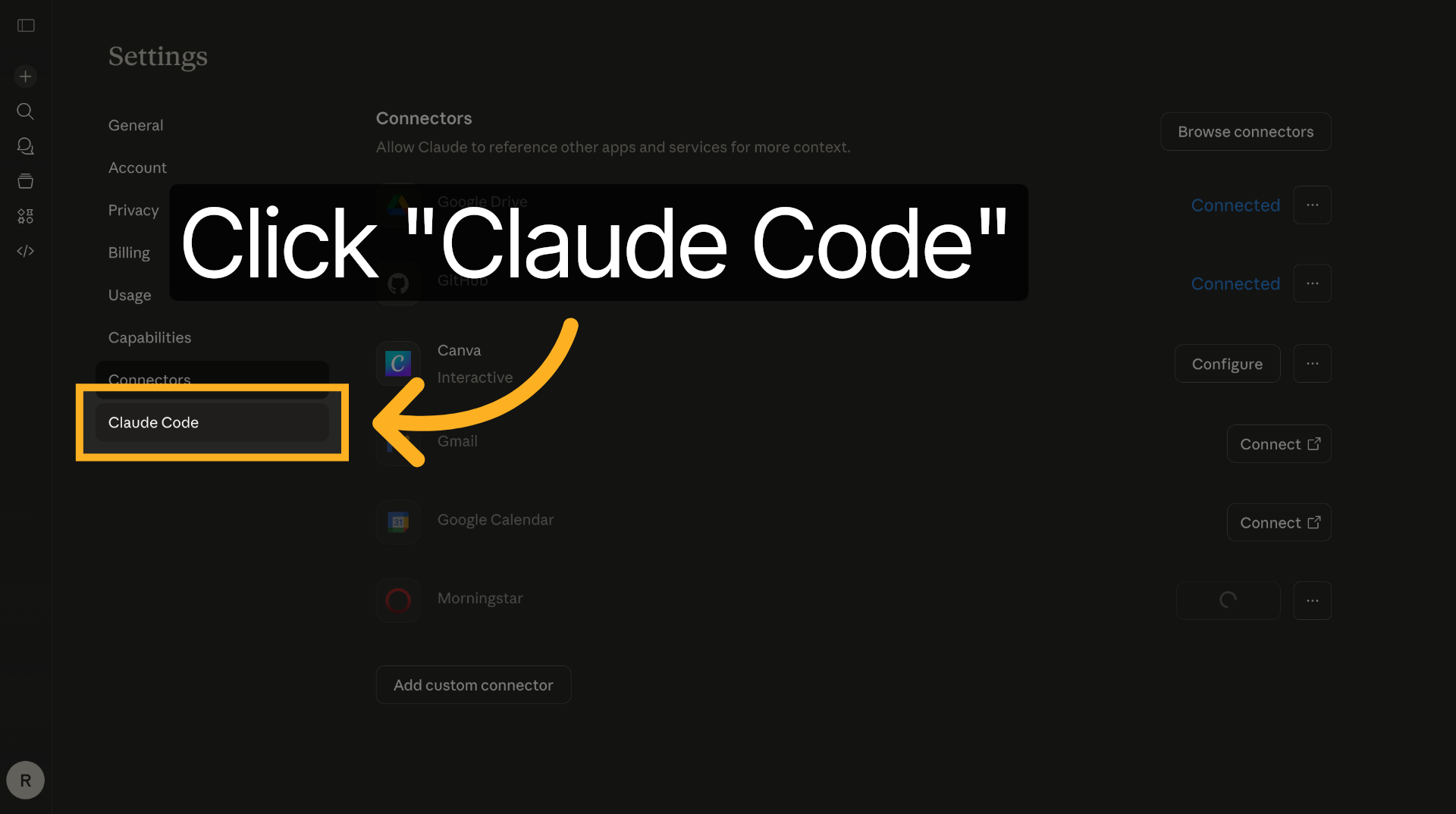
29. Access Manage Options
Click Manage to oversee and adjust Claude's code-related settings and skills.
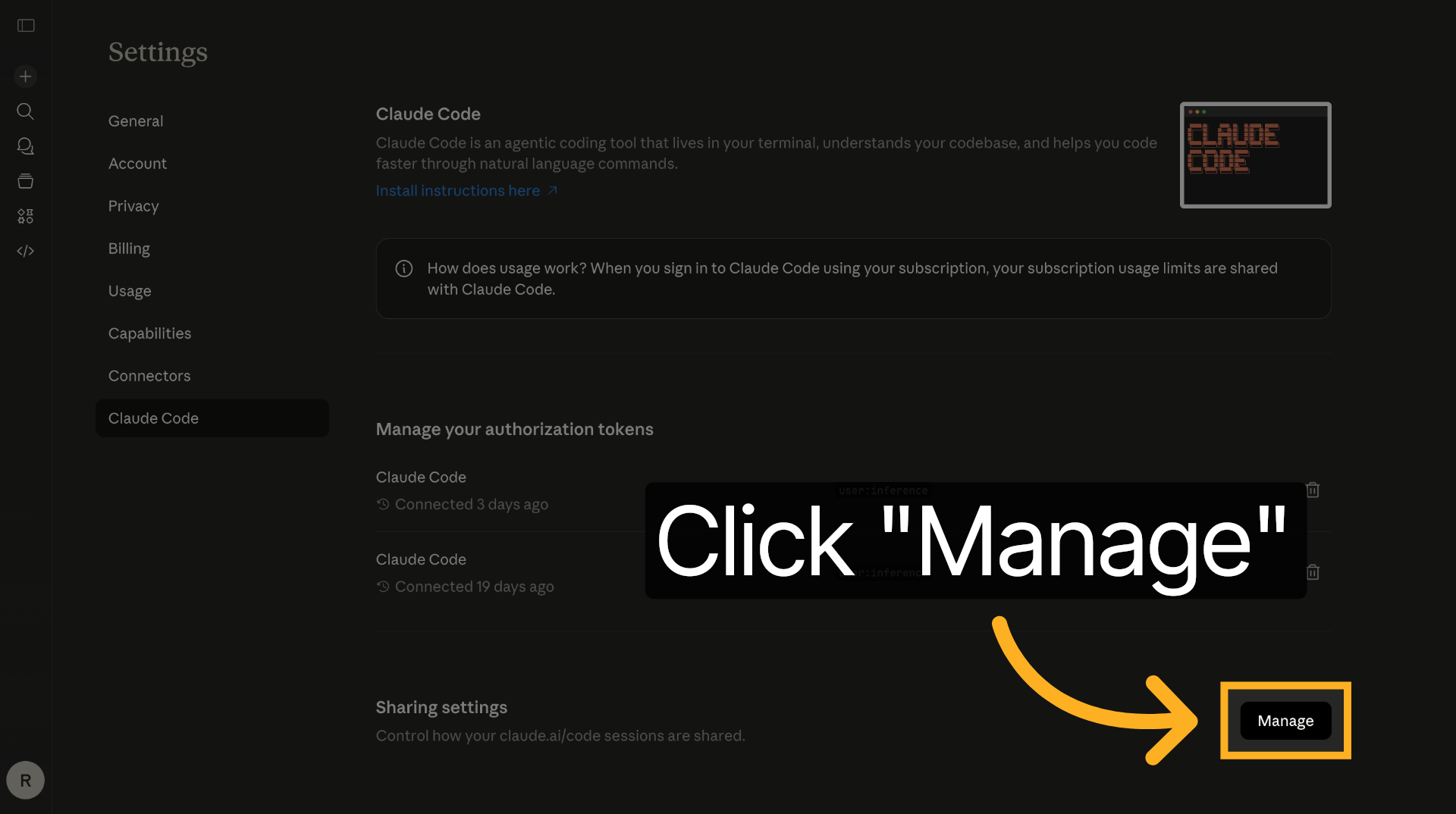
30. Open Code Settings
Open the code settings to configure specific parameters for Claude's coding capabilities.
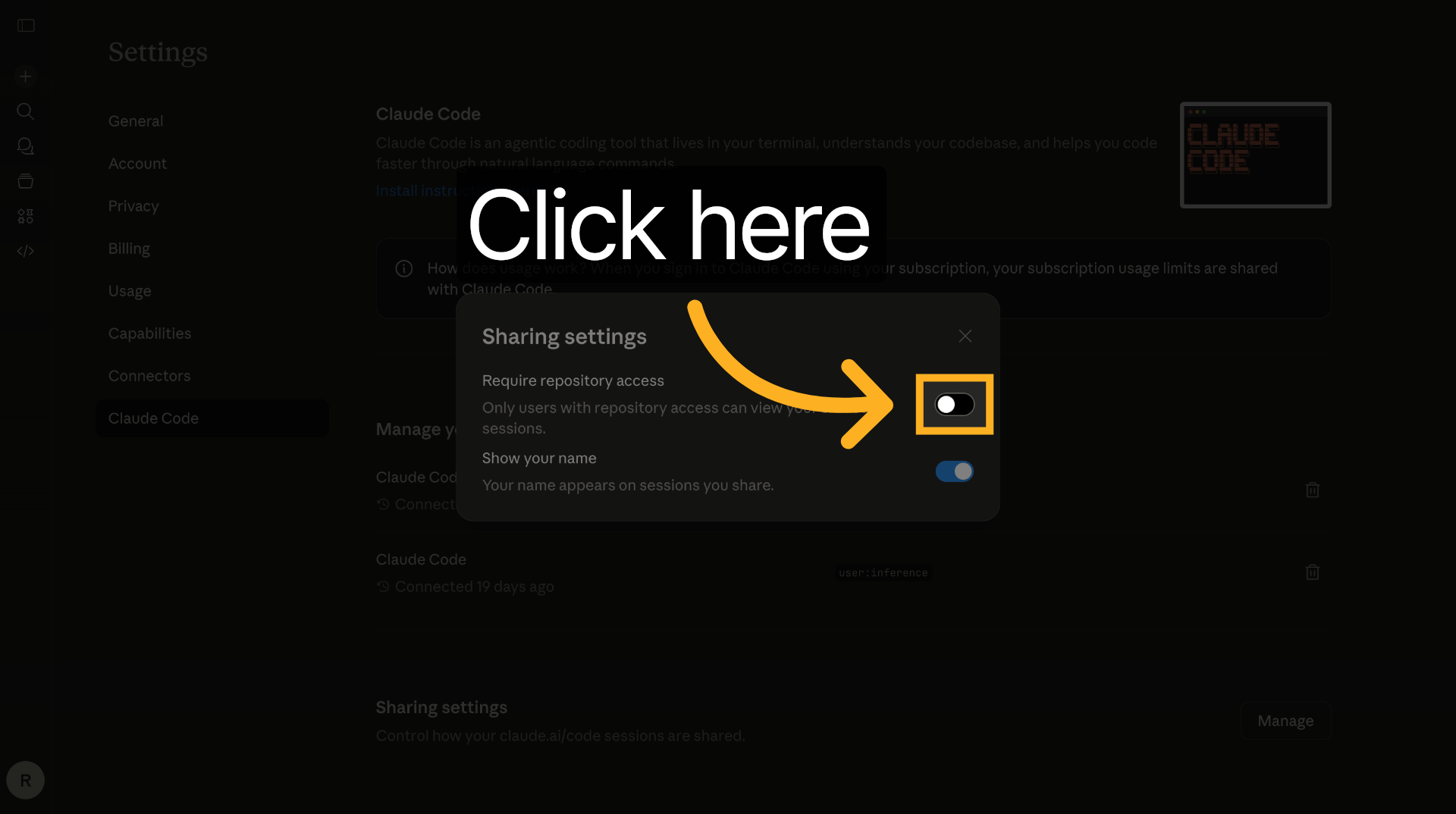
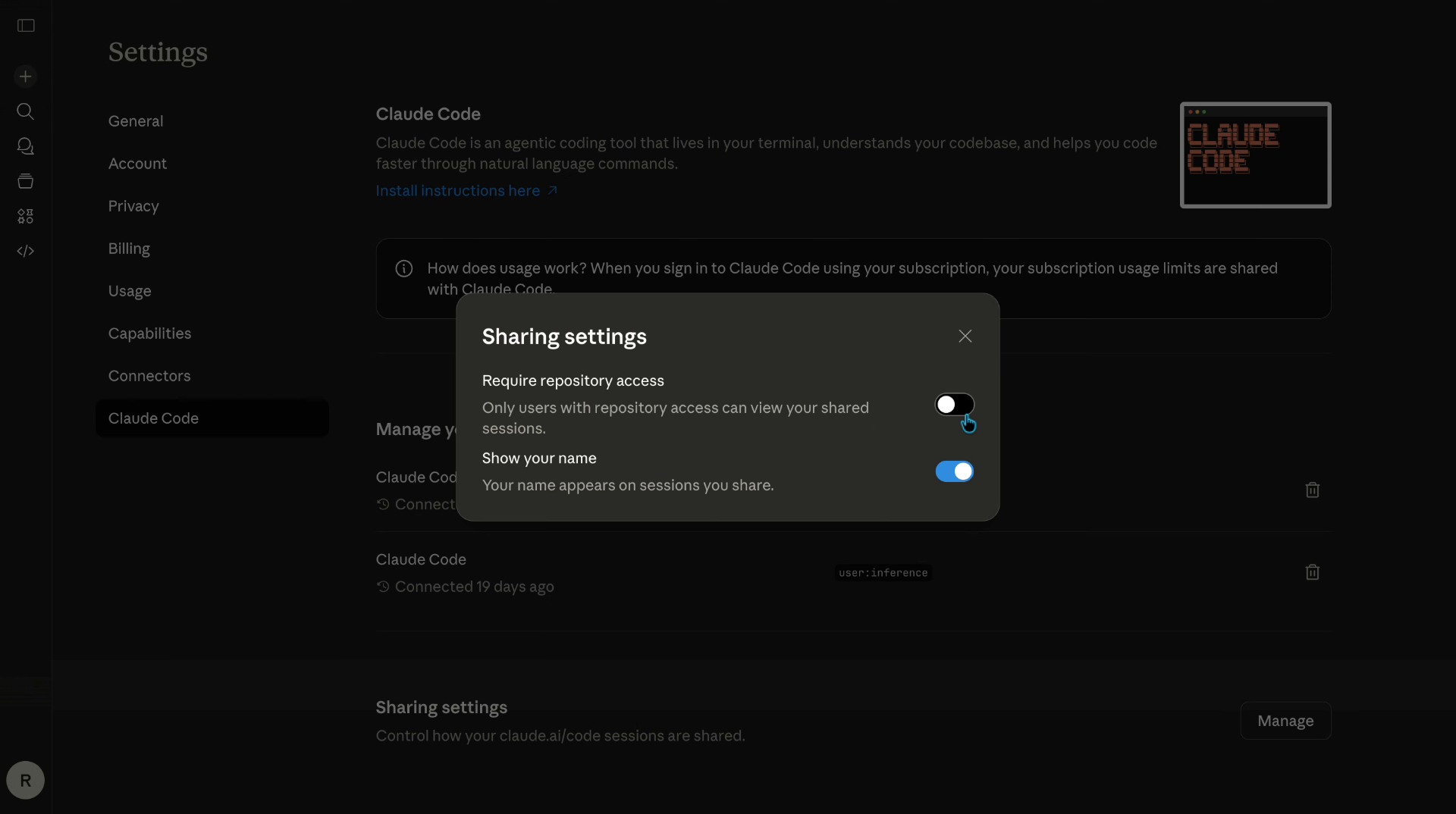
31. Enable Code Feature
Enter the value to enable a code-related feature within Claude.
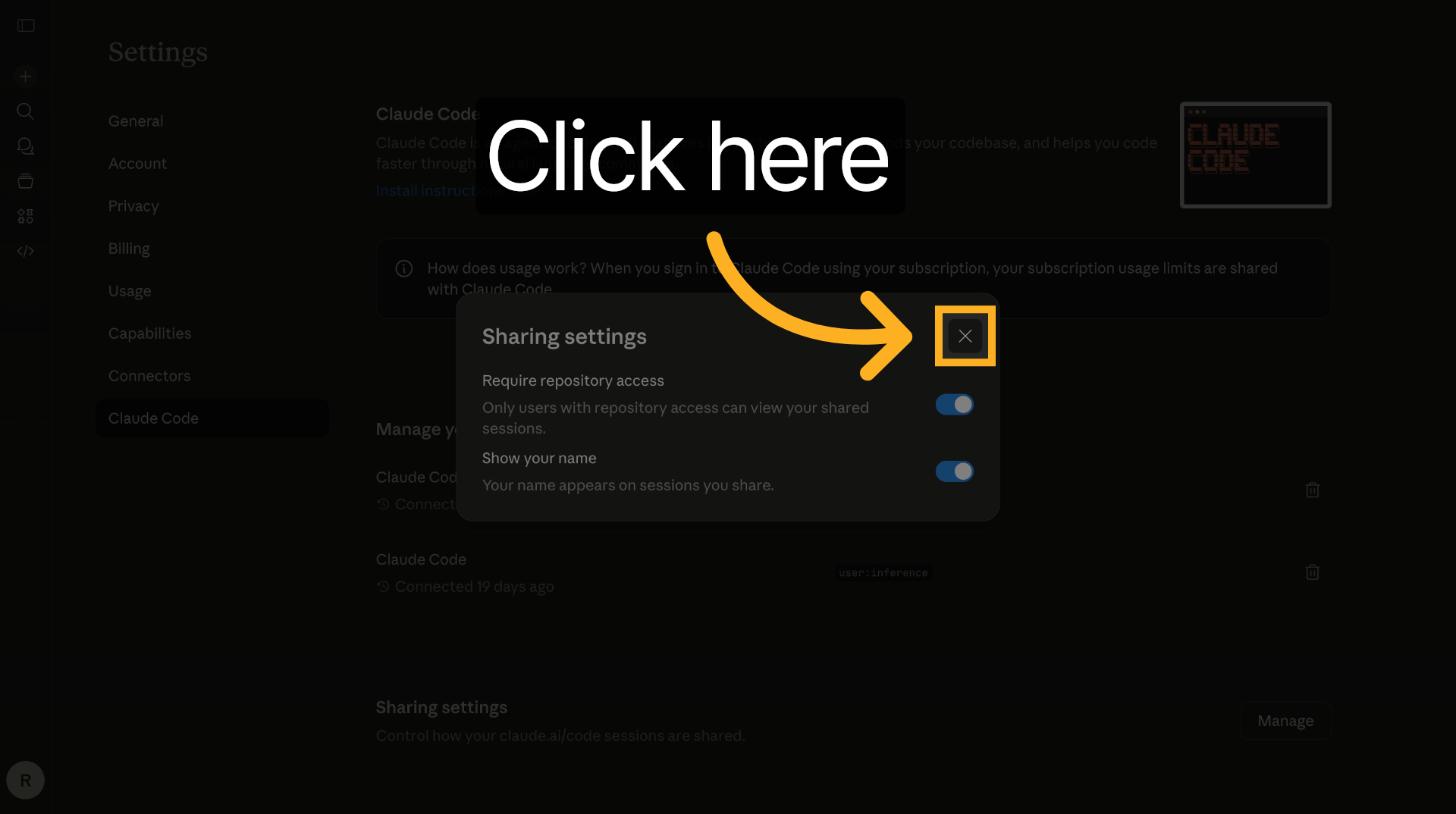
32. Finalize Configuration
Click to finalize the configuration and save all changes made to Claude's skills and connectors.
After completing this training, you will be able to configure Claude's skills, manage personal preferences, and connect external services to enhance its performance. Practice these steps to ensure effective use of Claude's capabilities in your role. Reach to us at www.futureu.co if you need more help in configuring Claude for your work place